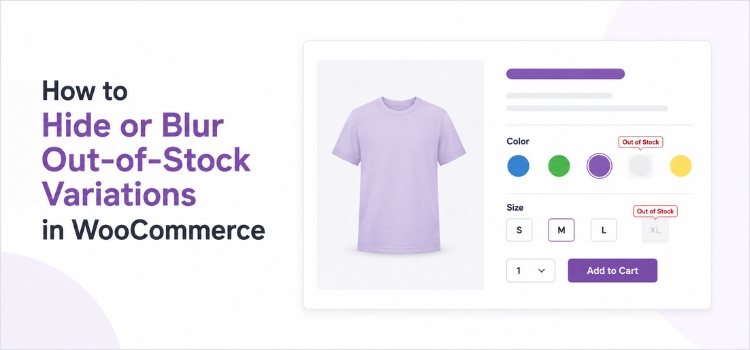
You have a great product page. It shows five colors and four sizes. That is twenty options in total.
Now, let’s assume a shopper visits your page. She clicks “White.” Then she clicks “XL.” And then she sees this message: This item is currently out of stock and unavailable.
That is a bad moment. She did the work of choosing. Your store gave her nothing back.
Most WooCommerce store owners eventually run into the same question: How do I stop showing variations that customers can’t buy?
WooCommerce gives you one built-in setting that covers part of this. The rest you shape yourself. There are four ways to handle it, and hiding is not always the best one. Sometimes it is better to blur the option, cross it out, or grey it out.
This guide shows you all four ways. You will learn how each one works, what the code looks like, and which one fits your store.
Why Out-of-Stock Variations Hurt Your Store
Let’s start with the problem itself.
- It stops the shopper. Every click is a small step toward buying. When the last step fails, you waste the shopper’s time. On phones this feels worse, because the error message often shows below the screen.
- It makes a false promise. A page with five colors looks like a store with lots of stock. If three colors are gone, the page is not telling the truth. Shoppers notice this. After that, they trust your stock numbers less.
- It creates more support work. “When will the blue one come back?” is one of the most common questions in online stores. It happens because stock info is not clear.
- It sends people away. A shopper who hits a dead end will not go back and try again. She leaves.
But there is another side to this. Out-of-stock options are not only bad. They show your full range. When a shopper sees “Green — Sold Out,” she learns that you do sell green. She may come back later. If you delete the option, she never learns that.
Keep this in mind. We will come back to it.
How WooCommerce Handles Variation Stock
Let’s cover the basics first. A lot of confusion here comes from mixing up two settings.
Two levels of stock
WooCommerce lets you track stock in two ways:
- Parent product level — one stock number for the whole product.
- Variation level — each option (Red/Small, Red/Medium, and so on) has its own stock. You turn this on by ticking Manage stock? inside each variation.
Hiding out-of-stock options only works if you track stock at the variation level. If you only track it at the parent level, WooCommerce does not know which single option is sold out.
The “Hide Out of Stock Items from the Catalog” Setting
Go to WooCommerce → Settings → Products → Inventory. You will see a box called Hide out of stock items from the catalog.
This is the first thing most people try, and it does more than the name suggests. It hides whole products from your shop pages, and it also hides out-of-stock variations from the dropdown on the product page.
But it only works if all of these are true:
- The box is ticked
- You manage stock at the variation level, not the parent product level
- Backorders are turned off for those variations
These conditions come from WooCommerce’s own variable product documentation.
If you manage stock at the parent level, or allow backorders, every variation still shows in the dropdown no matter what.
That is why so many store owners tick this box, see no change, and assume it is broken. It is usually the stock setting, not the checkbox.
The parent product stays visible on your shop pages as long as at least one variation is still in stock.
What WooCommerce does by default
Out of the box, sold-out options stay visible. Shoppers can still click them. When they do, they see the “out of stock and unavailable” message.
The catalog setting above is your one built-in tool, and it only does hiding — for your whole store at once, not per product. To grey options out, blur them, or cross them out, you need custom code or a plugin.
The Four Methods, Side by Side
Here is a quick view before we go deeper.
| Method | What the shopper sees | Works with default dropdown? | Good points | Weak points | Best for |
|---|---|---|---|---|---|
| Hide | The option is gone | Yes (built-in setting) | Clean page. No dead ends. No wasted clicks. | Hides your full range. Page can look empty. Shoppers may not know the color exists. | Stores with fast-moving stock and many options |
| Blur | Option is there, but soft and faded | No – needs swatches | Says “this exists, but not now.” Looks gentle. Page layout stays the same. | Can look like a bug if too soft. Needs a label or tooltip. | Color and image swatches, where the look matters |
| Cross out | A line runs through the option | No – needs swatches | Everyone understands it. No need to explain. Can create urgency. | Looks messy when many options are sold out. | Size options and limited stock items |
| Disable | Option is there, but grey and not clickable | Yes (PHP) | Shows your full range. Common pattern shoppers already know. | Shoppers still see what they cannot buy. | Most stores. The safest default. |
One important note before we go further. Two of these methods work with the plain WooCommerce dropdown. Two of them do not.
The default dropdown is an HTML <select> element. Browsers draw those menus themselves, using the rules of your visitor’s operating system. That means CSS mostly does not apply inside them. You cannot blur an <option>. You cannot draw a line through it.
This is a browser limit, not a WooCommerce one, and no snippet can work around it. So hide works through the built-in setting, and disable works with a small PHP snippet. Blur and cross out need real swatch elements on the page first. We will come back to what that means.
Method 1: Hide Out-of-Stock Variations
Hiding removes the option from the page. Shoppers only see what they can buy.
The no-code way
- Go to WooCommerce → Settings → Products → Inventory
- Tick Hide out of stock items from the catalog
- Save
Then open each product, go to the Variations tab, tick Manage stock? inside each variation, and set backorders to Do not allow.
Sold-out variations now disappear from the dropdown.
One catch. This setting is site-wide. You cannot switch it on for one product only. It also hides fully sold-out products from your shop pages. If you want sold-out products to stay visible, this setting is not for you.
The PHP idea
WooCommerce has a filter called woocommerce_variation_is_active. It runs for each variation. If you return false, WooCommerce marks that variation as not available.
/**
 * Mark out-of-stock variations as inactive.
 * Add this to a child theme functions.php file
 * or to a code snippets plugin.
 */
add_filter( 'woocommerce_variation_is_active', 'gwp_deactivate_oos_variations', 10, 2 );

function gwp_deactivate_oos_variations( $is_active, $variation ) {

    if ( ! $variation->is_in_stock() ) {
        return false;
    }

    return $is_active;
}
See “Where to put the code” below for the exact steps.
One honest note. In the default WooCommerce dropdown, this code does not delete the option. It turns it grey and blocks clicks. Many blog posts call this snippet “hide out of stock variations,” and then people get confused when the option is still there.
To truly remove the option, use the catalog setting we covered earlier. That is the built-in way, and it needs no code at all.
One more limit worth knowing. Once a product has more than about 30 variations, WooCommerce loads them over AJAX instead of all at once. This snippet often stops working at that point. If your product has 40 colors and the greying out is not happening, that is usually why.
You can see this working on a product with more than 30 variations if you want to try it yourself.
So think of this snippet as the disable method. It is still a good method.
What you give up
Hiding gives you a clean page. But it also hides information.
If a shopper wants navy, and navy is hidden, she has no way to know you sell navy at all. She will think you never had it. Then she will shop somewhere else, maybe forever.
Use hiding when items come back in stock quickly. Or add a “notify me” signup so shoppers can still ask about the item.
Method 2: Blur Out-of-Stock Variations
Before you try this: blur needs swatches. It will not work on the default WooCommerce dropdown, because browsers do not allow CSS effects inside a <select> menu. If your product page still shows plain dropdowns, skip ahead – the CSS below will do nothing.
Blur keeps the option on the page but makes it soft and faded. It says “this exists, just not today.”
This is mostly a CSS job. It works best with visual swatches, not plain dropdowns.
A simple CSS example
/* Example only. Change the class names to match your theme. */
.gwp-swatches li.out-of-stock,
.variations .swatch--disabled {
    filter: blur(1.5px);
    opacity: 0.45;
    cursor: not-allowed;
}

/* Block clicks, but keep screen readers informed */
.gwp-swatches li.out-of-stock[aria-disabled="true"] {
    pointer-events: none;
}
See “Where to put the code” below for the exact steps.
The class names above are examples. Your theme or swatch plugin will use different ones. To find yours, right click a sold-out swatch on your product page and choose Inspect. Look at the class="…" part and use that name instead. If you cannot find a class that only appears on sold-out swatches, this method will not work on your setup.
How to blur well
- Do not blur too much. More than 2px starts to look like a broken page. About 1px to 2px, plus lower opacity, works best.
- Always add a label or tooltip. Blur alone is not clear. A small “Sold out” text removes all doubt.
- Think about access.
pointer-events: nonealso blocks keyboard users. That is fine for sold-out items, but screen readers still needaria-disabled="true"to say what is going on. Style alone is not enough. - Check the contrast. A blurred grey swatch on a white page can be hard to see. Test it.
One catch: your theme must add a class like .out-of-stock to the sold-out swatch. Without that class, CSS has nothing to target. Default WooCommerce dropdowns do not add such classes. That is why blur usually needs a swatch setup.
Method 3: Cross Out Sold-Out Variations
Before you try this: like blur, this needs swatches. The diagonal line is drawn with a CSS ::after element, and ::after does not work on <option> tags inside a dropdown. On a default WooCommerce store, this CSS will have no effect.
A line through a swatch is one of the clearest signs in online shopping. No one needs it explained.
/* Example only */
.gwp-swatches li.out-of-stock {
    position: relative;
    opacity: 0.6;
}

.gwp-swatches li.out-of-stock::after {
    content: "";
    position: absolute;
    inset: 0;
    background: linear-gradient(
        to top right,
        transparent calc(50% - 1px),
        currentColor calc(50% - 1px),
        currentColor calc(50% + 1px),
        transparent calc(50% + 1px)
    );
    pointer-events: none;
}
See “Where to put the code” below for the exact steps.
The class names above are examples. Your theme or swatch plugin will use different ones. To find yours, right click a sold-out swatch on your product page and choose Inspect. Look at the class="…" part and use that name instead. If you cannot find a class that only appears on sold-out swatches, this method will not work on your setup.
For text options like S, M, L, and XL, a simple text-decoration: line-through does the same job.
When this works well: size options, small batches, and items where “almost gone” helps you sell. When a shopper sees that most sizes are gone, she moves faster on the ones left.
When it does not: a grid of 40 colors with 30 crossed out looks bad. At that point, hiding is kinder to the shopper and better for your brand.
Method 4: Disable (Grey Out) Variations
Disabling keeps the option fully visible. It just turns it grey and blocks clicks.
You see this pattern on almost every large online store. That is exactly why it is safe. Shoppers already know what it means.
The PHP filter from Method 1 gives you this behavior. You then style it with lower opacity and a not-allowed cursor.
.woocommerce div.product form.cart .variations option:disabled {
    opacity: 0.5;
    cursor: not-allowed;
}
Browsers style disabled options themselves, so this may look different across Chrome, Safari, and Firefox.
Why does this method win so often? Because it is honest. It shows your full range. It tells the truth about stock today. And the shopper does not need to guess.
Before You Paste Any Code
Where to put the code
Two kinds of code appear in this guide, and they go in different places.
PHP goes in a snippets plugin. The safest way is a free plugin called WPCode.
- Go to Plugins → Add New, search for WPCode, install and activate it
- Go to Code Snippets → Add Snippet → Add Your Custom Code
- Give it a name, and set Code Type to PHP Snippet
- Paste the code. Do not include
<?phpat the start — WPCode adds it - Set Insertion to Auto Insert → Run Everywhere
- Switch the toggle to Active and save
WPCode checks your code before saving. If something is wrong, it turns the snippet off instead of breaking your site.
CSS goes in the Customizer.
- Go to Appearance → Customize → Additional CSS
- Paste the code
- Watch the live preview on the right
- Click Publish
CSS cannot break your site. If it does not work, nothing happens.
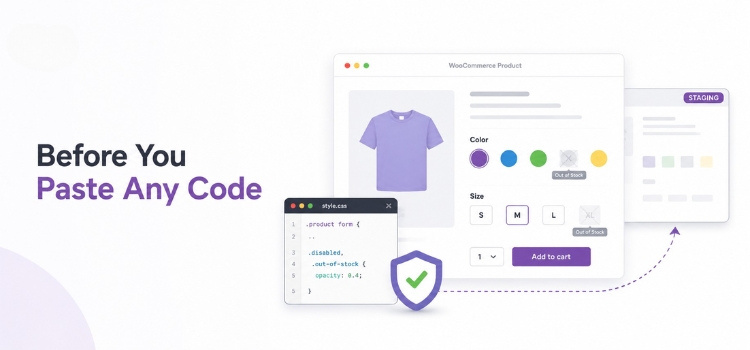
Test on a staging site first if you have one. The PHP snippet sits close to your add-to-cart button, and a mistake there stops people buying.
How to check it worked. Open a variable product in your admin. Pick one variation, tick Manage stock?, set stock to 0, and save. Now open that product on your site. The sold-out option should look different from the others.
If nothing changed, your stock is set at the parent product level instead of the variation level. That is the most common reason these snippets seem not to work.
If you go the code route, please read this part first.
- Class names are different in every theme. The CSS above uses example names. Your theme almost certainly uses others. You must inspect your own page and adjust.
- Filters change between versions. The WooCommerce variation form has changed several times. Code that worked last year can stop working after an update.
- Never edit a parent theme directly. Use a child theme or a code snippets plugin. If you edit the parent theme, your changes vanish at the next update.
So Can You Do All Four Without a Plugin?
This is the honest answer, and it matters before you spend an afternoon on CSS that will never run.
Hide: yes, with no code. Tick the catalog setting. Remember it applies to your whole store.
Disable: yes, with a small snippet. Add the PHP from Method 1 to a child theme or a snippets plugin.
These work because they change WooCommerce logic, not the look of the menu.
Blur and cross out: not with the default dropdown. These need real HTML elements on the page – a <li> or a <div> for each option – because that is the only kind of element CSS can style freely.
So what would it take to build that yourself? Roughly this:
- Override the
variable.phptemplate in your child theme - Write PHP that prints swatch elements instead of a
<select>menu - Read the stock status of every variation and add the right class to each swatch
- Write JavaScript so clicking a swatch updates the hidden
<select>behind it - Recalculate which swatches are still available every time the shopper changes an attribute
- Handle keyboard navigation and
ariastates so the page stays accessible
Step 5 is the hard one. With two or more attributes, working out which combinations are still buyable turns into real logic, and getting it wrong means shoppers can select things you cannot ship.
At that point you are not adding a small snippet. You are building a swatch plugin from scratch.
That is worth knowing, because it changes the question. It is not “plugin versus no plugin.” It is “do I want to write and maintain a few hundred lines of PHP and JavaScript to get a diagonal line on a sold-out swatch?”
For most store owners, the answer is no.
The Easiest Way: Variation Swatches for WooCommerce
Now you know all four methods. The next question is simple: how do you set them up without writing and fixing code every few months?
That is where Variation Swatches for WooCommerce comes in.

The plugin replaces those plain dropdown menus with real swatches — colors, images, buttons, and labels. And it handles hiding, blurring, and crossing out for you, as a setting you click, not code you write.
Why this is the best fit for this job
- Hide, blur, and cross out are built in. You pick the behaviour from a setting instead of writing code. No CSS. No PHP. No searching for the right class name in your theme. This also solves the dropdown problem from earlier. Because the plugin replaces
<select>menus with real swatch elements, blur and cross out become possible in the first place — not just easier to set up. - It works whether you have 5 variations or 500. Hand-written snippets usually break past 30 variations, because WooCommerce switches to AJAX loading. The plugin handles it either way. Live demo with 40+ variations.
- It works with your theme. The plugin adds the correct classes and markup itself. So you do not need to inspect your theme, guess at selectors, or redo the work when you switch themes.
- It stays working after updates. This is the biggest hidden cost of custom code. WooCommerce updates. Your theme updates. PHP updates. Each one can quietly break a snippet — and “quietly” is the dangerous part, because your page still loads. It just stops hiding things, and you may not notice for weeks. The plugin is tested against new WooCommerce releases, so that job is not yours.
- It is accessible by default. The plugin handles the aria-disabled states and tooltips that hand-written CSS often forgets. Your sold-out swatches stay clear for screen reader users too.
- It looks right on phones. Swatch styling that looks fine on a large screen can vanish on a small one. The plugin keeps swatch sizes, tooltips, and sold-out styles readable on mobile, where most of your traffic is.
- It does more than stock display. You also get color swatches, image swatches, tooltips, and a cleaner buying flow overall. For image-led products, pairing it with additional variation images gives shoppers more to look at per option.
Free or premium?
The free plugin covers all three behaviours for products with up to about 30 variations, and it needs that catalog setting from earlier switched on.
The premium version removes both limits. Unlimited variations, and it works without the catalog setting — so you can handle sold-out variations on your product pages while sold-out products stay visible in your shop. The built-in setting makes you choose one or the other. This does not.
Who should still write code?
Let’s be fair here. If you run one store, you enjoy PHP and CSS, and you like owning every line of your setup, custom code is a real option. It costs nothing but your time.
The plugin makes more sense when you would rather not think about this again after setup. Or when you manage several stores. Or when your theme changes often. In those cases, the time you save is worth far more than the setup itself.
Does Hiding Out-of-Stock Variations Affect SEO?
Short answer: the effect on search rankings is small, and mostly indirect.
Here is why.
- Variations are not usually separate pages. Google indexes the main product URL. Single variations do not normally get their own URL. So changing which options show does not remove pages from Google. But if every variation creates a unique URL, then you definitely need to pay attention to it. In those cases an ecommerce SEO audit is worth doing before you change anything.
- Your schema matters more than your styling. If your product markup says
availability: OutOfStock, that is what search engines read. Google handles mixed stock fine and can still show a product as available if at least one option can be bought. Blurring a swatch with CSS does not change your schema at all. - The real effect is about people. Dead ends push up bounce rate and cut time on page. These are not simple ranking factors, but a page that keeps failing shoppers tends to slip over time. So better UX here helps SEO through happier users, not through code.
One real risk: do not hide so much that a product page has nothing left to buy. That creates a thin, useless page. Handle that case at the product level instead. Mark the whole product out of stock, or use the catalog setting we covered earlier.
Best Practices for Out-of-Stock Options
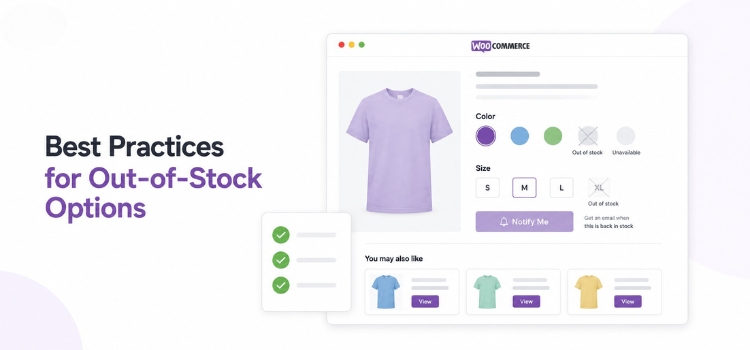
- Match the method to the product. Sizes work well with cross-out. Colors work well with blur or disable. Very large catalogs work well with hiding.
- Never let a shopper click into a dead end. Whatever you choose, the sold-out state must be clear before the click, not after.
- Add a “notify me” option. This turns a lost sale into an email address. It is the single most useful thing you can add here. It is also a strong reason not to hide options — you cannot collect an email for something no one can see.
- Show other choices. If Large is gone, show a similar item or point to Medium. Keep the visit alive.
- Keep your stock numbers correct. All of this is only cosmetic if your stock data is wrong. Nothing hurts trust more than an order you cannot ship.
- Test on a phone first. Blur and cross-out effects that look clear on a big screen can disappear on a small one.
- Do not use color alone. A grey swatch means nothing to a color-blind shopper if grey is the only signal. Add a line, an icon, or text.
- Stay consistent. Pick one style and use it everywhere. Mixed styles force shoppers to relearn your site on every page. The same goes for your shop and category pages — if you show swatches on the shop page, sold-out options should look the same there as on the product page.
Common Mistakes to Avoid
- Managing stock at the parent product level. The catalog setting does hide out-of-stock variations, but only when each variation manages its own stock. Parent-level stock is the most common reason it seems not to work.
- Using
display: nonewithout disabling the option. The option is hidden on screen, but it still exists in the code and can sometimes still be selected. - Forgetting the plain dropdown. If your theme falls back to dropdowns on mobile, your swatch CSS will not apply there.
- Hiding everything. A page with all options hidden looks broken. Handle it at the product level.
- Skipping the staging test. Variation code sits right next to the buy button. Test it.
Frequently Asked Questions
How do I hide out-of-stock variations in WooCommerce?
WooCommerce has a built-in way. Go to WooCommerce → Settings → Products → Inventory and tick “Hide out of stock items from the catalog.” Sold-out variations will disappear from the dropdown, as long as each variation manages its own stock and backorders are off. To grey options out instead of removing them, use the woocommerce_variation_is_active filter.
Does WooCommerce hide out-of-stock variations on its own?
No. By default, sold-out options stay visible and clickable. Shoppers see an “out of stock and unavailable” message after they select one.
Can I blur or cross out variations without a plugin?
Not with the default WooCommerce dropdown. Browsers do not allow CSS styling inside a <select> menu, so blur effects and diagonal lines are not possible there. You would need to replace the dropdown with real swatch elements first. Hiding and disabling, on the other hand, work fine with a small PHP snippet.
What is the difference between hiding and disabling a variation?
Hiding removes the option from the page, so shoppers never know it exists. Disabling keeps it visible but grey and unclickable. Disabling shows your full product range. Hiding gives you a cleaner page.
Can I blur out-of-stock swatches with CSS only?
Yes, but only if your theme or plugin adds a class such as .out-of-stock to the sold-out swatch. Without that class, CSS has nothing to target. Default dropdowns do not add one.
Will hiding out-of-stock variations hurt my SEO?
Not directly. Variations are not usually indexed as separate pages, and front-end styling does not change your product schema. The indirect effect is positive, because fewer dead ends means happier visitors. However, if each variation has its own URL, you should pay attention to it. In some cases, you may need an ecommerce SEO expert to review and fix any issues.
Should I hide or cross out sold-out sizes?
Cross them out. Size availability is information shoppers want. Seeing that only two sizes are left creates urgency. Hiding sizes makes it look like you never sold them.
How do I show a “sold out” label instead of hiding the option?
Add a text label or tooltip to the sold-out swatch. You can do this with CSS pseudo-elements or with a plugin setting. Pairing a visual style with clear text is always more accessible.
What if every variation of a product is out of stock?
Handle it at the product level. Mark the whole product out of stock, or tick Hide out of stock items from the catalog so the product leaves your shop pages.
Wrapping Up
It all comes down to one question: what does the shopper lose when an option disappears?
If the answer is “not much, she will pick another color,” then hiding is fine. It gives you the cleanest page. And if the answer is “she will think you never sold what she came for,” then keep the option visible and style it clearly.
For most stores, disabling or crossing out is the right balance. It is honest about stock, clear about range, and it wastes no clicks.
Whichever method you choose, the rule is the same. Shoppers should know what they can buy before they click, not after.

