Everyone says you should use AI in your store. Few people tell you where to start. Even fewer tell you where AI can hurt you.
This guide fixes that. You will see seven real jobs AI can do for a WooCommerce store. You will see what to check before you trust it. And you will see where AI stops, and your product page still has to do the work.
What does “AI for WooCommerce” mean?
AI for WooCommerce means using smart software to do store jobs faster. The software can write text, make images, answer questions, suggest products, or read your sales data.
No single tool does all of this. Most of these tools are separate plugins or outside services. Each one has its own price and setup. WooCommerce core does not give you all of them in one switch.
The best way to think about AI is as a fast helper. It drafts. You decide.
Here is the short version of what this guide covers:
| Job | What AI can do | What you must check |
|---|---|---|
| Product text | Draft titles, descriptions, and meta text | Facts, size, material, and brand voice |
| Images and video | Clean backgrounds, make scenes, add angles | The image matches the real product |
| Support chatbot | Answer common questions any time | Refund and shipping answers |
| Search and recommendations | Understand what customers mean | Speed, cost, and result quality |
| Marketing and email | Draft subject lines, ads, and posts | Tone, claims, and spam rules |
| Reports and operations | Summarize sales, draft review replies | Data quality before any action |
| AI agents and MCP | Let AI tools read or manage store data | Permissions and testing on staging |
1. Product descriptions and SEO text
This is the most common use of AI in WooCommerce. It is also the easiest to get wrong.
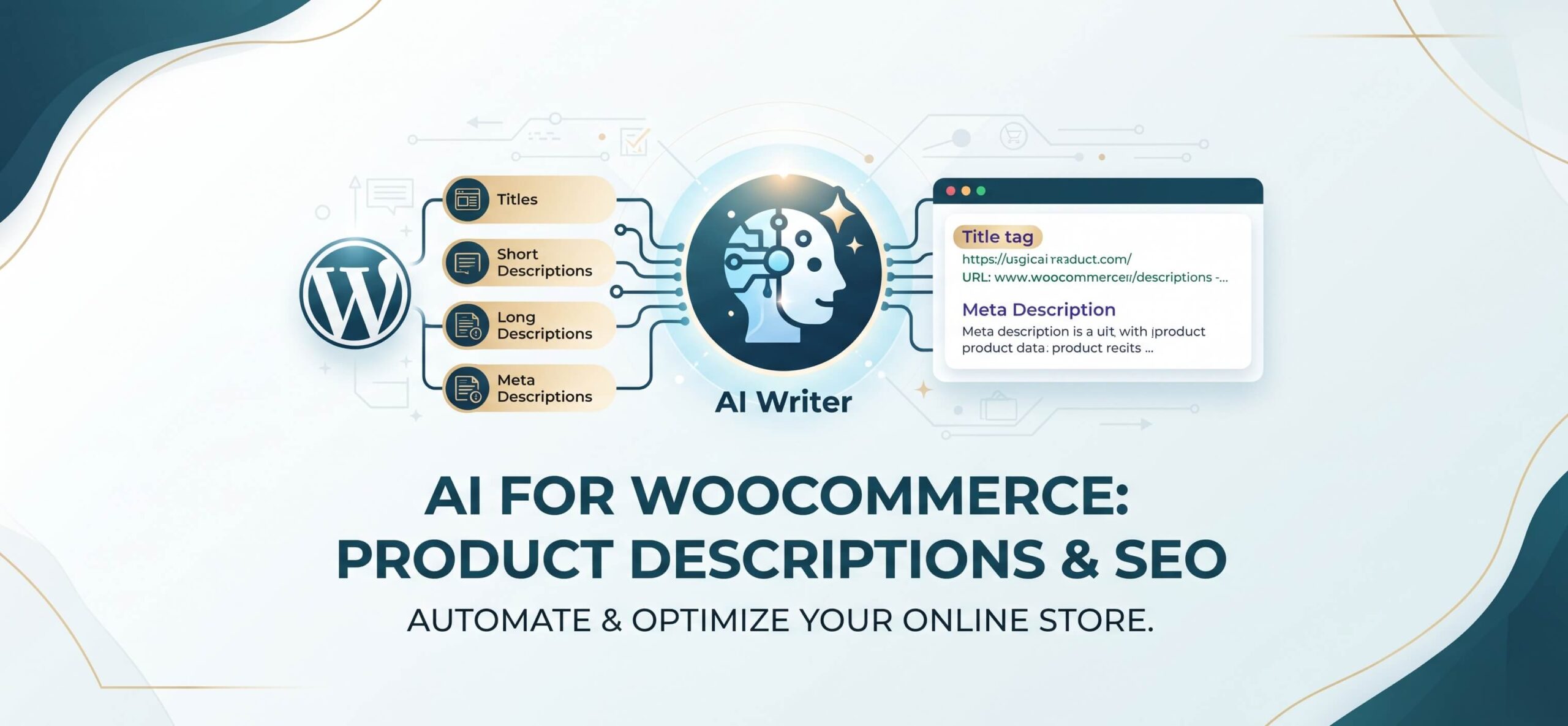
If you have hundreds of products, writing every description by hand takes weeks. AI can draft product titles, short descriptions, long descriptions, and meta descriptions in minutes.
You have two ways to do it:
- Use a plugin inside WooCommerce. Some plugins add AI writing to the product editor. For example, the AI Auto Sales Booster listing on WooCommerce.com describes AI tools for product titles, descriptions, meta text, and keywords. Roundups also name plugins such as GetGenie and Aiflow for product content. Check each tool’s current features and price before you buy.
- Use a general AI assistant. Paste in your product facts, ask for a draft, then copy the result into WooCommerce.
How to get good results
- Give the AI real facts: size, material, color, care, and what is in the box.
- Tell it the tone you want. For example: “friendly, short sentences, no hype.”
- List words and claims it must not use, such as “best” or “guaranteed.”
- Ask for a short draft first. Then improve it.
- Edit every draft yourself before it goes live.
The big risk: AI can invent details. If it says a bag is waterproof and it is not, you get returns and angry reviews. Never publish an AI draft without checking the facts.
When doing it by hand is fine: if you sell 20 products, write them yourself. Your own words sound like you. That is hard for a tool to copy.
2. Product images and video
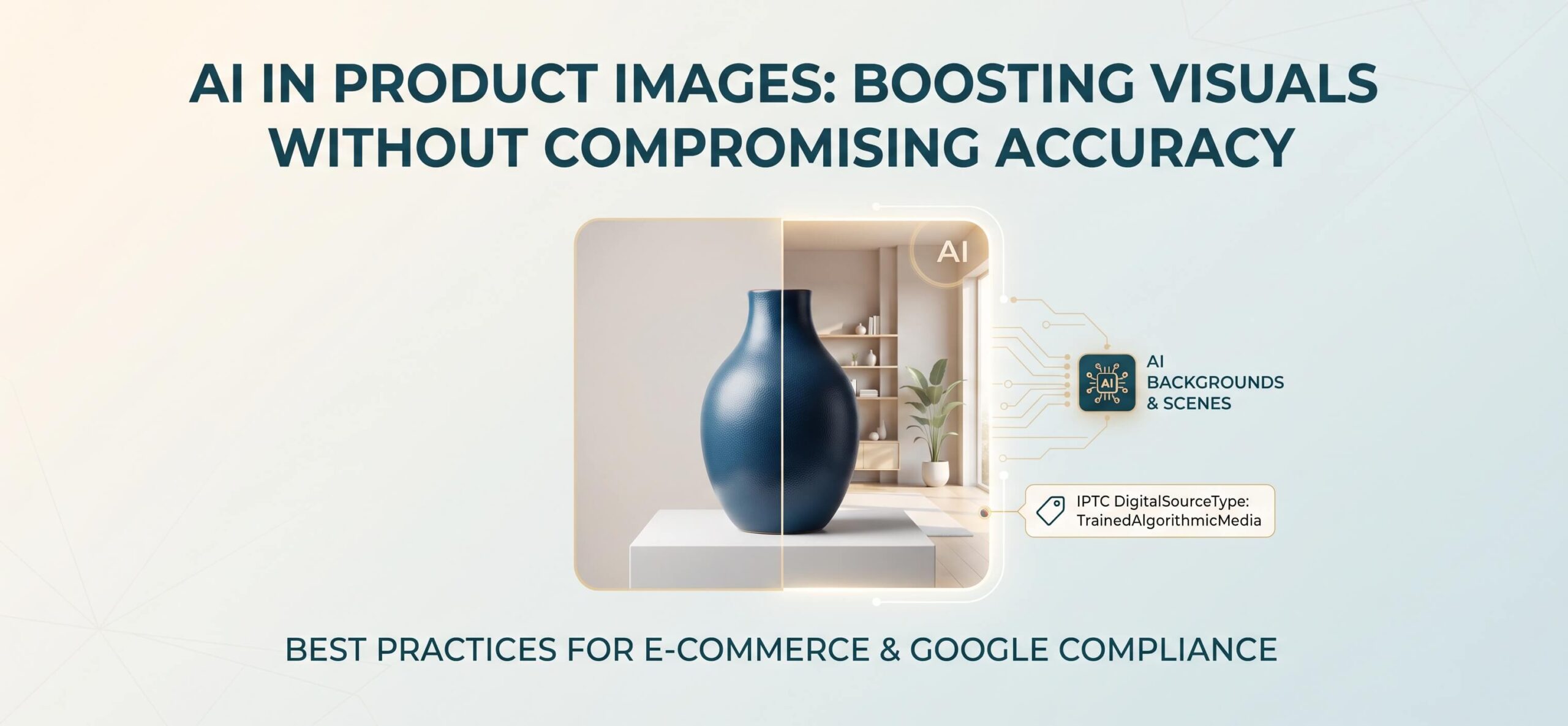
AI can remove backgrounds, place a product in a room, or make extra angles. For a small store, that can save a lot of money on photo shoots.
But customers buy what they see. If the AI image shows a different shade of blue than the real product, they will send it back.
A safe way to use AI images:
- Keep real photos for the exact product, color, and texture.
- Use AI for backgrounds and scenes, not for changing the product itself.
- Check every image on a phone screen and a laptop screen.
If you use Google Merchant Center, there is one more rule. Google says AI-generated images must carry the IPTC DigitalSourceType “TrainedAlgorithmicMedia” metadata. It also says AI-generated product titles and descriptions must be specified separately and labeled as AI-generated. Read the current policy before you upload a feed.
Once you have many good images, you need a way to show them. We cover that in the product page section below.
3. Customer support chatbots
A chatbot can answer simple questions at any hour. Think of questions like “Where is my order?”, “Do you ship to Canada?”, or “Is this in stock?” A good bot reads your store data and replies in seconds.
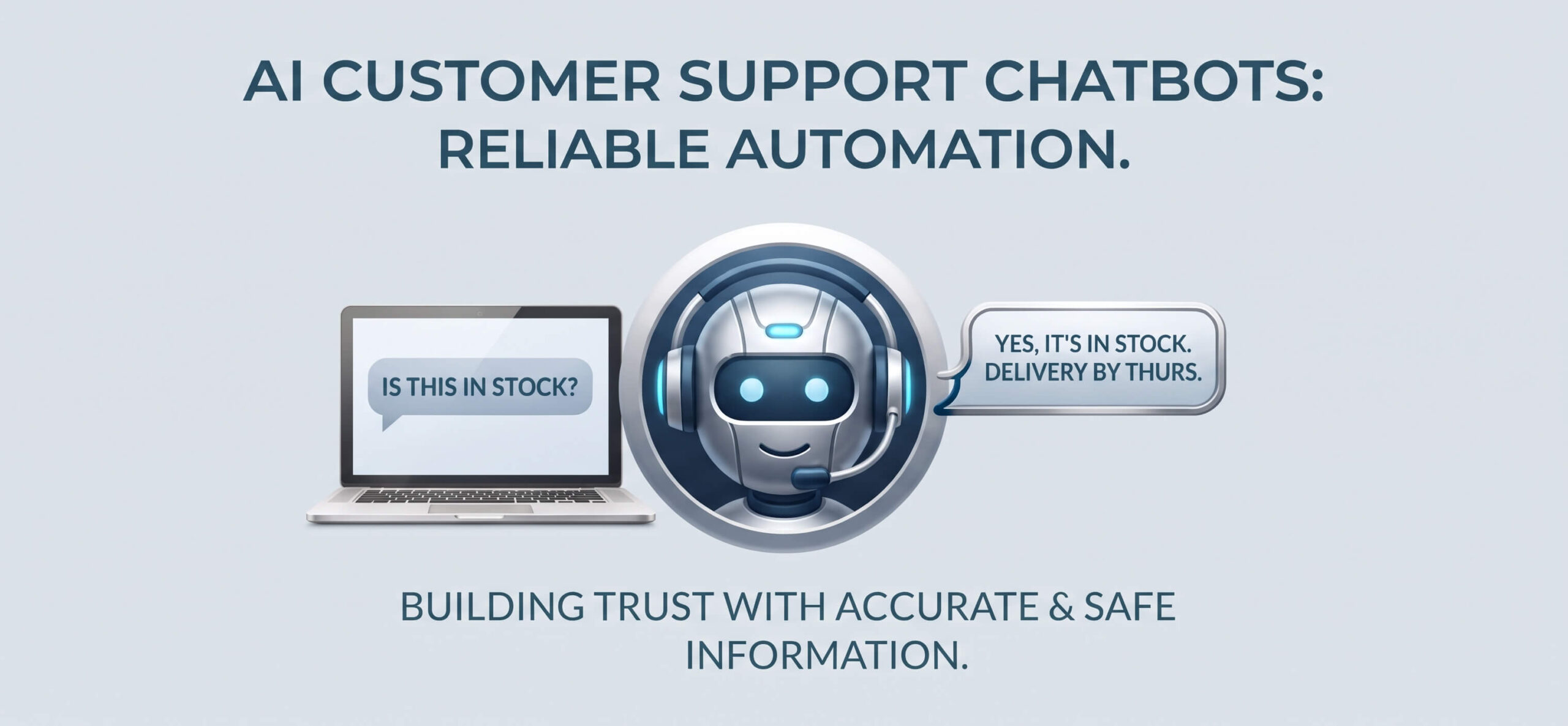
This can cut your support workload. But a bad answer can cost you more than the time you saved. If the bot gives the wrong refund rule, a customer will hold you to it.
How to start safely:
- Begin with a narrow bot. Let it answer only shipping, returns, and stock.
- Make it easy to reach a real person.
- Test it with 20 real questions from your inbox before it goes live.
- Check what customer data the tool sends to its provider. Read the privacy terms and your local privacy laws.
4. Search and recommendations
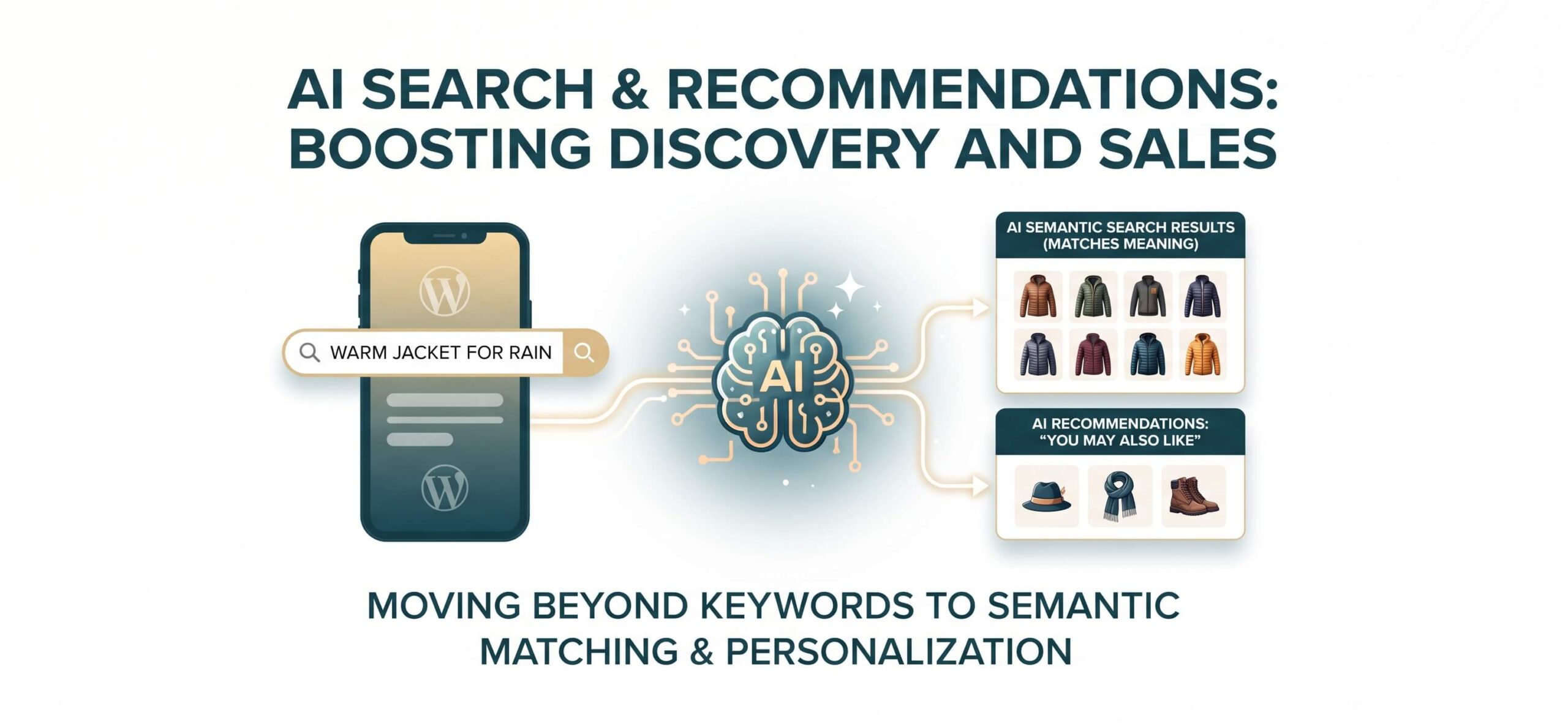
Basic WooCommerce search matches words. AI search tries to match meaning. A customer who types “warm jacket for rain” may get useful results, even if no product title has those exact words.
AI recommendations suggest other products, like “you may also like.” Tools in this area include Doofinder, which is described as an AI-driven search plugin, and all-in-one plugins like AI Auto Sales Booster, which lists semantic search and product recommendations.
Before you pay for one, ask three questions:
- Does it slow down my pages?
- Is the price based on search volume? Will it grow as I grow?
- Can I still control which products appear first?
Also look at your own data first. If very few customers use your search box, this is not your first job to fix.
5. Marketing and email
AI is good at first drafts. It can write email subject lines, ad variations, product launch posts, and short social captions. It can also help you write ten versions of one message and test them.
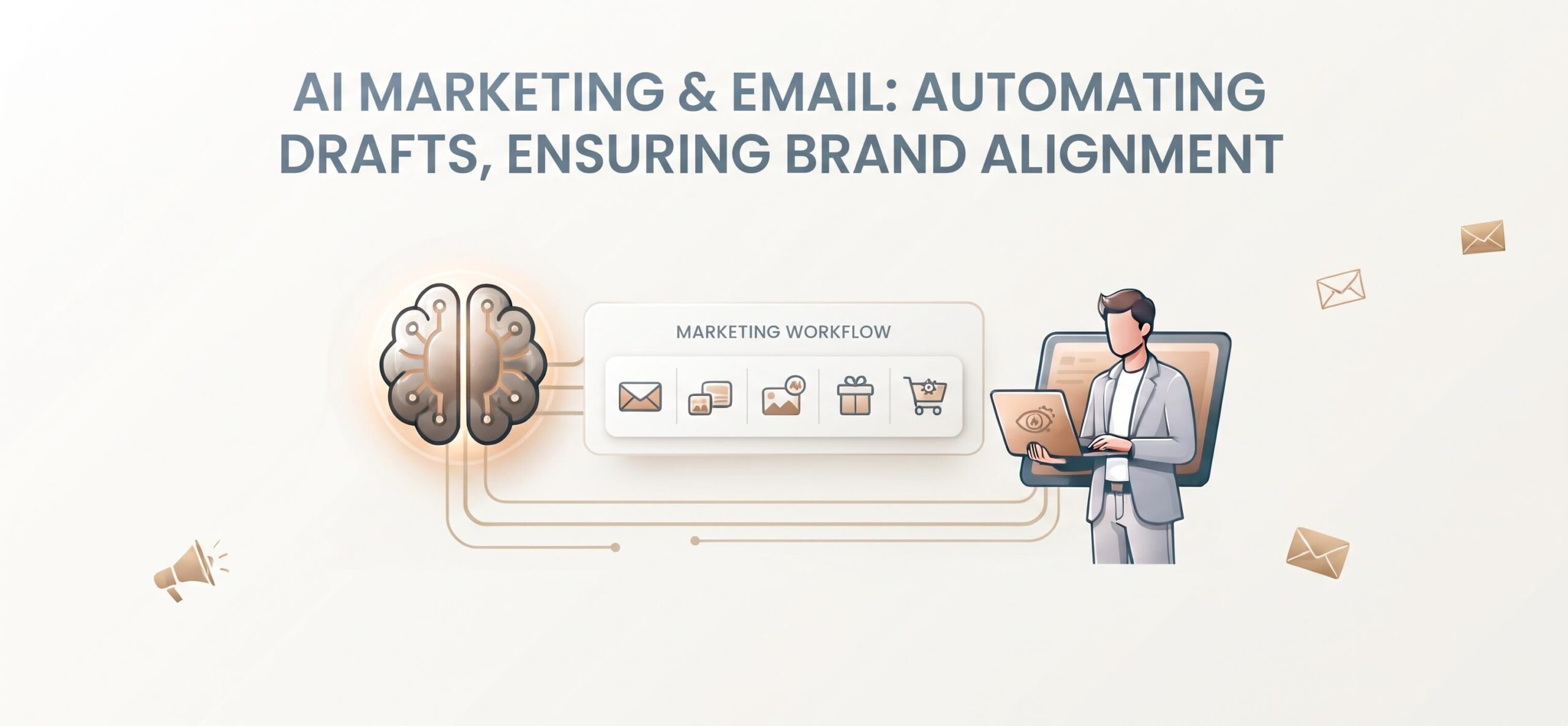
Keep a human in the loop. AI does not know your brand promise. It may add a discount you do not offer, or a claim you cannot back up. Read every message before it goes out.
Some all-in-one tools also list cart recovery messages. These can be useful. Still, check that the timing and wording match your brand, and follow the email rules in your country.
6. Store operations and reports
AI can summarize a month of sales in plain words. It can draft replies to product reviews. It can point out products that sell fast and may run low.
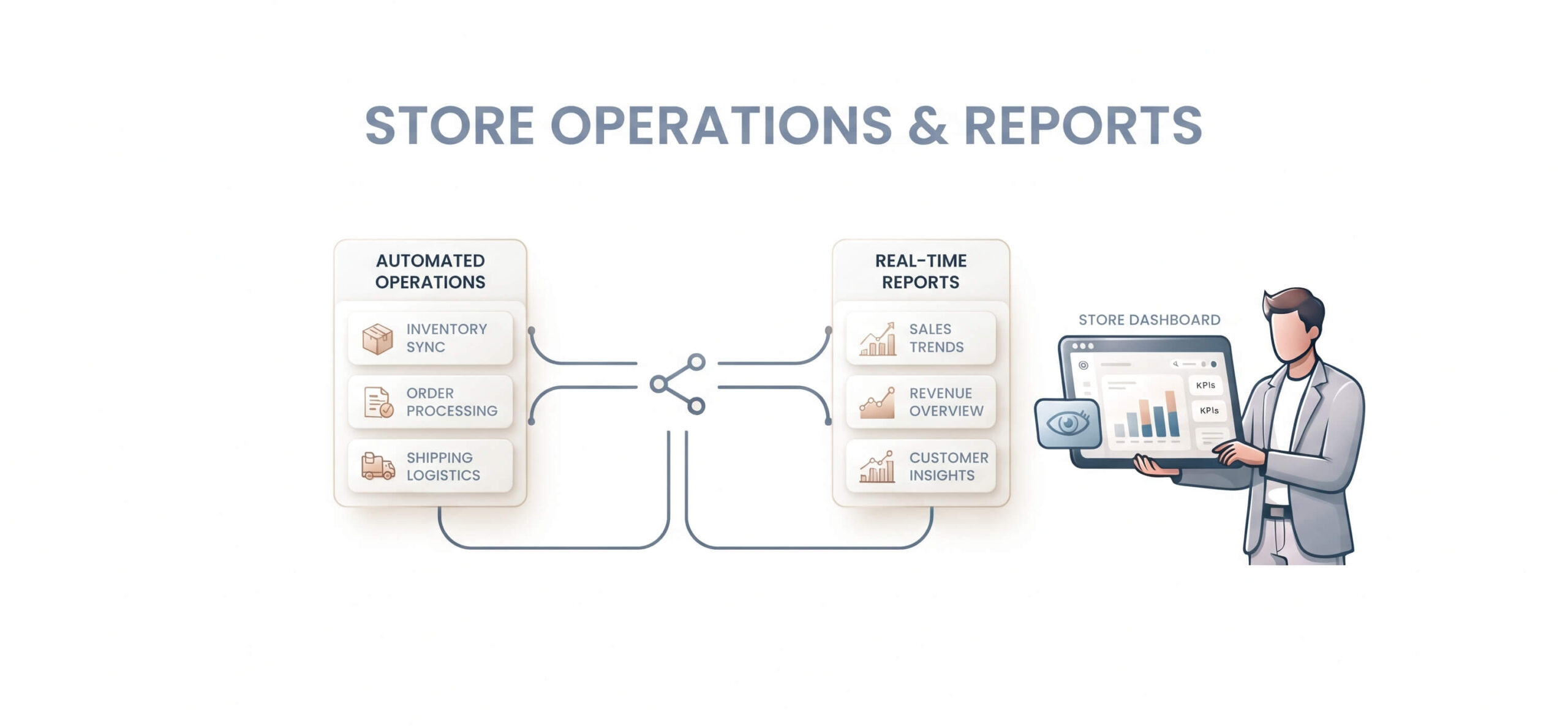
Remember this: AI is only as good as the data you feed it. If your stock counts are wrong, its forecast will be wrong too.
A good rule is to let AI suggest and let a person approve. Do not let any tool reorder stock or change prices on its own until you have watched it for a few weeks.
7. AI Agents and MCP: what is new
This part is newer, and it is more technical.
MCP stands for Model Context Protocol. It is an open standard that lets AI assistants connect to tools and data in a safe, structured way. WooCommerce has built support on top of two WordPress pieces: the Abilities API and the MCP Adapter. WooCommerce’s developer blog describes a first set of official “abilities” for products and orders that arrived with WooCommerce 10.9.
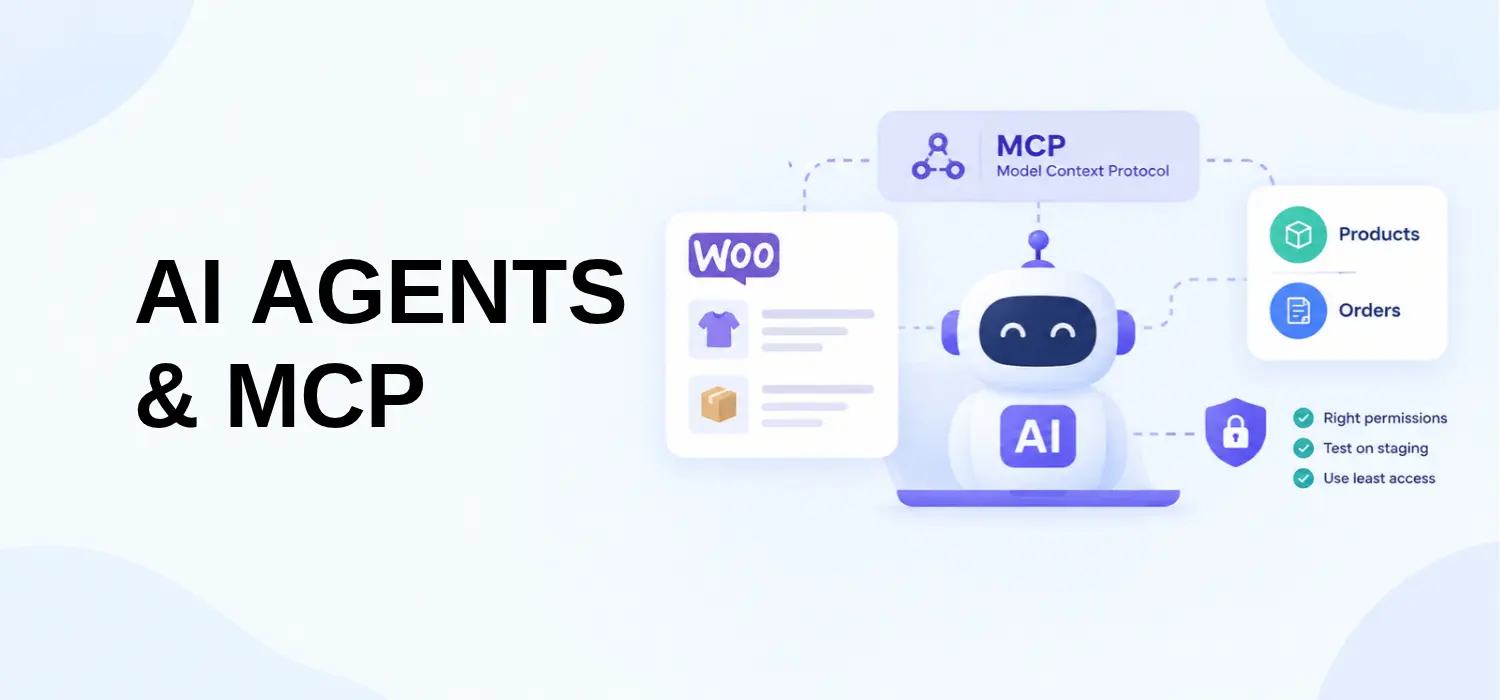
In plain words, this can let an AI assistant, with the right permissions, look up products or orders in your store. Later, it may help update them.
A few honest limits:
- It is aimed at developers first. Setup steps have changed between releases.
- WooCommerce’s own documentation says the Abilities API and the MCP adapter are still evolving.
- Connecting AI to live store data needs care. Test on a staging site. Give the lowest permissions you can.
You may also hear about AI assistants that let people buy inside a chat. For WooCommerce, this is still rolling out and depends on partners and payment tools. Check the latest WooCommerce and Stripe announcements before you plan around it.
One thing helps either way. Clear, well organized product data is easier for a person to use, and easier for a machine to read.
Where AI stops: your product page still has to work
AI can help you make text and images. It does not decide how a customer picks a color or a size on your page.
Many store owners spend hours on AI-written copy and AI-made images. Then they leave a plain dropdown menu and one image per variation. The content is better, but the buying experience is the same.
Two of our plugins close that gap.
Let customers see their choices: Variation Swatches
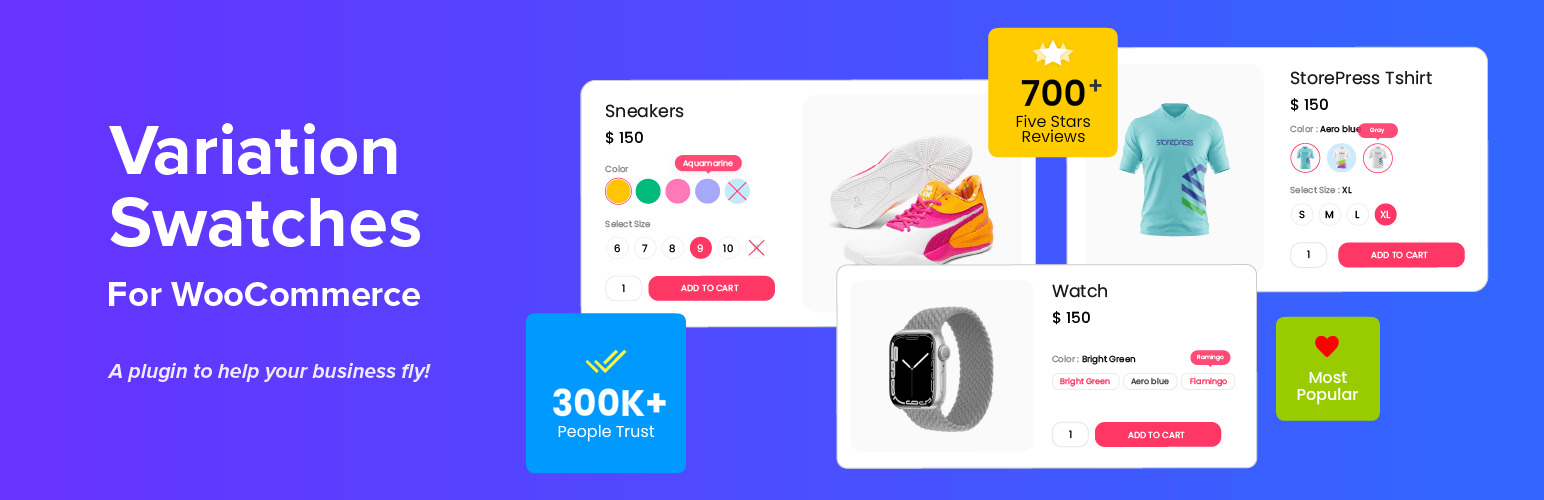
A dropdown hides what you are choosing. A customer who wants “Sage Green” has to guess what the name looks like.
Variation Swatches for WooCommerce replaces dropdowns with color, image, button (label), and radio swatches. Customers see the choice, not just a word.
Here are a few things it does that matter for stores using AI images:
- It can turn a dropdown into image swatches automatically when a variation has a featured image.
- It can show swatches on shop and archive pages, not only on the product page.
- It can blur or hide out-of-stock variations, and show the remaining stock for each variation.
A free version is on WordPress.org, so you can try it first. Premium adds more. Check the plugin page to see which features you need. You can also try the live demo.
Want to go deeper? Read our guides on WooCommerce color swatches and how to hide or blur out-of-stock variations.
Show the right images for each choice: Variation Gallery
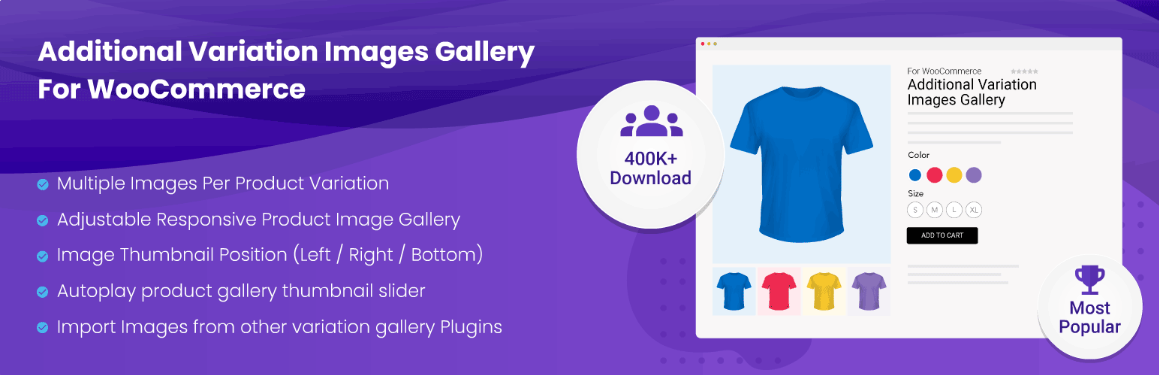
Say you made six great images for each color of a jacket. Additional Variation Images Gallery for WooCommerce lets you add unlimited images to each variation. It also supports YouTube, Vimeo, and self-hosted video per variation. When the customer picks a variation, the gallery changes to match.
Other useful settings include image zoom, a lightbox popup, drag and drop sorting, and thumbnails on the left, right, or bottom. See it in the live demo.
A free version is on WordPress.org. Before you choose, look at the free vs premium table on the plugin page. It shows which features come with each version.
When the default setup is enough
You do not always need a plugin. If you sell a few variable products, and each one has a simple size option and one good image, default WooCommerce works well.
Swatches start to help when color, pattern, or material is the main choice, or when you have many variations. A gallery starts to help when customers need to see each variation from several angles, or in video.
If you get stuck setting up either plugin, our support team will help you.
Risks to know before you start
Google and AI content. Google does not ban AI content. Its guidance says AI can help with research and structure. But using AI to produce many pages without adding value may break its spam policy on scaled content abuse. So do not make 500 thin pages because a tool can. Fewer, better pages win.
Wrong facts. AI sounds sure even when it is wrong. Check every number, material, and claim.
Privacy. Before you connect a tool to customer data, read how the provider stores and uses it.
Cost creep. Many AI tools charge by use. Set a budget, and check your bill each month.
Too much automation. Start with tasks where a mistake is cheap. Move to riskier tasks only after you trust the result.
If you want expert help scaling these efforts safely, partnering with a trusted ecommerce SEO service provider can save you from costly missteps.
How to start in one week
You do not need a big plan. Try this small one.
- Day 1: Pick one job. Choose the task that wastes the most of your time. For many stores that is product descriptions.
- Day 2: Pick one tool. Test it on five products only.
- Day 3: Write your rules. Set tone, banned words, and what facts the AI must use.
- Day 4: Review by hand. Fix every mistake. Note which kinds of mistakes repeat.
- Day 5: Publish and watch. Go live with those five products. Next, check Google Search Console for clicks and impressions on the pages you changed.
- Week 2: Decide. If the results are good and the work is lighter, do the next batch. If not, change the tool or the rules.
Frequently asked questions
What is AI for WooCommerce?
It means using AI tools to help run a WooCommerce store. Common jobs are writing product text, making images, answering customer questions, improving search, and reading sales data.
Can AI run my WooCommerce store for me?
No. AI can do many small jobs well. But it can also make mistakes. You still need to set the rules and check the results.
Does WooCommerce have built-in AI?
WooCommerce has started to add AI-related tools, mainly through its MCP support for developers. Most store owners still add AI through plugins or outside tools. Check the latest WooCommerce release notes for what is new.
Is AI-written product content bad for SEO?
Not by itself. Google says AI content is not banned. The risk is low-quality content made at scale. Add real facts, check every draft, and write for customers.
Are there free AI plugins for WooCommerce?
Some tools have free plans or free versions. Most paid features charge a fee or charge by usage. Check each tool’s current terms before you install it.
How much does AI for WooCommerce cost?
It varies a lot. A general AI assistant may cost little. All-in-one plugins and AI search tools may charge a yearly fee or a fee based on usage. Check current prices on each tool’s own page.
Do I need to know how to code?
For most plugins, no. For MCP and custom AI agents, you will likely need a developer.
Where should I use AI first?
Pick the task that takes the most time and has the lowest risk. For many stores, that is first drafts of product descriptions, followed by a careful human review.
Final thoughts
AI can save you real time in a WooCommerce store. It drafts text, helps with images, answers simple questions, and sorts data. But it works best when you stay in charge.
Start small. Check everything. And do not forget the last step: your customers still have to choose a variation and see the right pictures. That is where Variation Swatches and Variation Gallery turn all that new content into a smoother way to buy.

