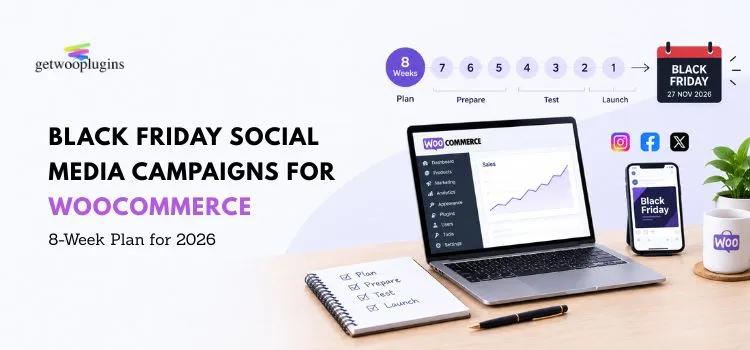
Black Friday is on 27 November 2026. Cyber Monday follows on 30 November. If you read this today, you have about eight weeks. That is enough time to plan well, test what works, and fix your store before the rush.
This guide gives WooCommerce store owners a clear plan for Black Friday social media campaigns. It uses real data, plain steps, and honest advice.
Key Takeaways
- Pick one platform first. Choose the one where most of your customers and revenue already come from. If you do not know, test two platforms for two weeks.
- Start now. Use October to test, November to warm up, and Black Friday weekend to sell.
- Own your audience. Use social posts to collect emails so you are not depending on one algorithm.
- Fix the landing page. A great ad that sends people to a confusing product page wastes money.
- Check stock before you promote. Sold-out variations waste clicks and hurt trust.
Why Do Black Friday Social Media Campaigns Matter for WooCommerce Stores?
They matter because more customers now find products on social media, and they buy on their phones.
Here is what the data says. All figures below are for the US, from Adobe Analytics, and cover 2025.
| Fact | Number | Source |
|---|---|---|
| Online sales on Black Friday 2025 | $11.8 billion, up 9.1% | Adobe |
| Online sales on Cyber Monday 2025 | $14.25 billion, up 7.1% | Adobe |
| Online sales, Thanksgiving to Cyber Monday | $44.2 billion | Adobe |
| Social media share of Cyber Monday revenue | 3.6%, up from 2.3% in 2024 | Adobe |
| Creator and partner share of Cyber Monday revenue | 21.8%, up from 20.3% | Adobe |
| Mobile share of online spend, 1 to 28 November | 52.2% | Adobe |
Two points stand out.
First, social media is still a small share of revenue, but it grew fast. Adobe says customers use it more to discover products, then buy through other channels. So your social post may start the sale, even when the last click comes from somewhere else.
Second, mobile now leads. Adobe reported that seven out of ten retail site visits came from mobile devices during the 2025 season. Your posts, product pages, and checkout must work well on a small screen.
These numbers are for the US. Your market may be different, so treat them as a guide, not a promise.
What Is the Best Timeline for a Black Friday Campaign?
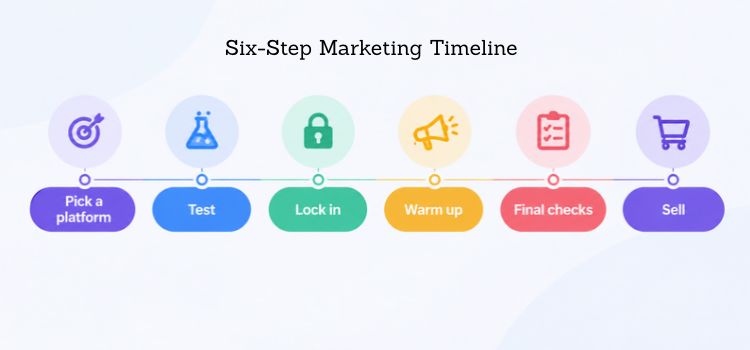
The best timeline has three parts: test, warm up, and sell. Use this table as a starting point.
| Dates (2026) | Focus | What to do |
|---|---|---|
| 1 to 11 October | Pick a platform | Check your data. Choose one or two platforms to test. |
| 12 to 25 October | Test | Run small tests. Compare posts, offers, and audiences. |
| 26 October to 8 November | Lock in | Decide your offer. Fix product pages. Check stock. |
| 9 to 22 November | Warm up | Tease the sale. Collect emails. Offer early access. |
| 23 to 26 November | Final checks | Test your site speed and checkout. Schedule posts. |
| 27 to 30 November | Sell | Post daily. Watch stock. Push last call on Cyber Monday. |
Adobe also noted that deals now start earlier and last longer. Its data shows Black Friday growth beat Cyber Monday growth for the second year in a row, because customers shop earlier. So do not wait until the last week.
Step 1: Pick One Platform Where Your Customers Already Are
Do not try to be everywhere. A small team cannot do great work on five platforms at once.
Choose the platform that brings you the most customers and the most revenue. Here is how to find it.
- Check your analytics. Look at which social sites send visitors who buy, not just visitors who click.
- Look at revenue, not likes. A platform with fewer clicks can still bring more orders.
- Ask your customers. Add a simple question at checkout or in your order email: “How did you hear about us?”
- Look at your competitors. See where they post and where their posts get real replies.
What If You Do Not Know Which Platform Works?
Then test before you commit. You have time.
- Pick two platforms.
- Use the same offer and a similar budget on each.
- Run the test for 10 to 14 days.
- Compare cost per order and revenue per click.
- Change only one thing at a time. If you change the image and the text together, you will not know which one worked.
Keep the test small. When one platform clearly wins, move most of your time there.
Step 2: Build One Clear Offer
A clear offer beats a clever one. Customers see many deals on Black Friday. Yours must be easy to understand in three seconds.
- Pick one headline offer. For example: “25% off all jackets” or “Free gift over $80.”
- Check your margins. Do the math before you post. A deal that loses money is not a win.
- Use real deadlines. Say when the sale ends and stick to it. Fake countdowns can damage trust.
- Reward your list first. Give email subscribers early access. It gives people a reason to sign up.
For context, Adobe expected discounts up to 28% in electronics, 25% in apparel, and 18% in furniture in 2025. You do not need to match these numbers. You do need to know what your customers see elsewhere.
Step 3: Plan Your Content in Three Phases
Plan content that moves customers step by step.
| Phase | Goal | Content ideas |
|---|---|---|
| Tease (2 to 3 weeks before) | Build interest and collect emails | Sneak peeks, product stories, “join the early access list” posts |
| Launch (Black Friday weekend) | Drive sales | Clear offer posts, short product videos, customer reviews |
| Last call (Cyber Monday) | Push undecided customers | “Ends tonight” posts, low-stock alerts, top sellers |
A few tips for better posts:
- Show the product in use. Short videos and real photos beat plain product shots.
- Use customer voices. Share real reviews and photos, with permission.
- Work with creators if it fits. Adobe counts creator sales inside its “affiliates and partners” group, which made up 21.8% of Cyber Monday revenue. Follow the disclosure rules in your country.
- Keep one call to action per post. “Shop now” or “Join the list.” Not both.
Step 4: Turn Followers into Email Subscribers
Social platforms can change their reach overnight. Your email list stays yours.
Adobe notes that paid search and email are still reliable drivers of traffic and sales. So use social posts to fill your list, then use email to sell.
- Offer early access or a small bonus for signing up.
- Add a signup box on your landing page.
- Send a reminder when the sale starts, and another before it ends.
Step 5: Fix Your Product Pages Before You Send Traffic
This is where many campaigns lose money. A customer clicks your ad and lands on a page that is slow, unclear, or sold out. Then they leave.
The rule is simple: the page must match the promise in the post. If the ad shows a red jacket in size medium, the customer should see a red jacket in size medium.
Below are three common problems and how to solve them. We show simple ways to solve each one.
Problem 1: The Link Does Not Open the Right Variation
The manual way. WooCommerce can preselect a variation from the page address. You add attribute values to the product URL. For a global attribute, it often looks like this:
https://yourstore.com/product/jacket/?attribute_pa_color=red&attribute_pa_size=mediumThe name after attribute_ and the value must match your attribute and term slugs. This is conceptual, so test it on your own store. Open the link in a private window and check that red and medium are already selected. If not, check your slugs.
When the manual way is fine. If you have only a few variable products, hand-built links work well. Make them once, save them in a spreadsheet, and reuse them in your posts.
The plugin way. If you promote many products, building links by hand gets slow. Customers may also pick colors faster when they can see swatches on your shop page. In Variation Swatches for WooCommerce, the Generate Variation URL option is a premium feature.

You turn it on in Swatches Settings, under the Advanced tab. Then a customer or your team can choose a variation and copy a link that opens the product with that choice selected. Test each link before you post it.
Problem 2: Customers Click a Sold-Out Option
During Black Friday, sizes and colors sell out fast. A customer who taps a sold-out option may leave for good.
The manual way. WooCommerce has a setting for this. Go to WooCommerce, then Settings, then Products, then Inventory, and turn on “Hide out of stock items from the catalog.” Two limits to know. It works for variations only when stock is managed at the variation level and backorders are off.
It also works site-wide, so fully sold-out products disappear from your shop pages too. Check the WooCommerce documentation for variable products for details.
Also note that browsers do not let you style a default dropdown. You cannot blur or cross out an option inside a plain <select> menu.
When the manual way is fine. If your products have few variations and you check stock daily, the WooCommerce setting may be enough.
The plugin way. Variation Swatches replaces dropdowns with real swatch elements, so it can show sold-out options clearly. Go to Swatches Settings, then Advanced, then Attribute Behavior. You can choose Blur or Hide. The cross icon comes with Blur. This is one global setting, so you cannot set a different behavior for each attribute.
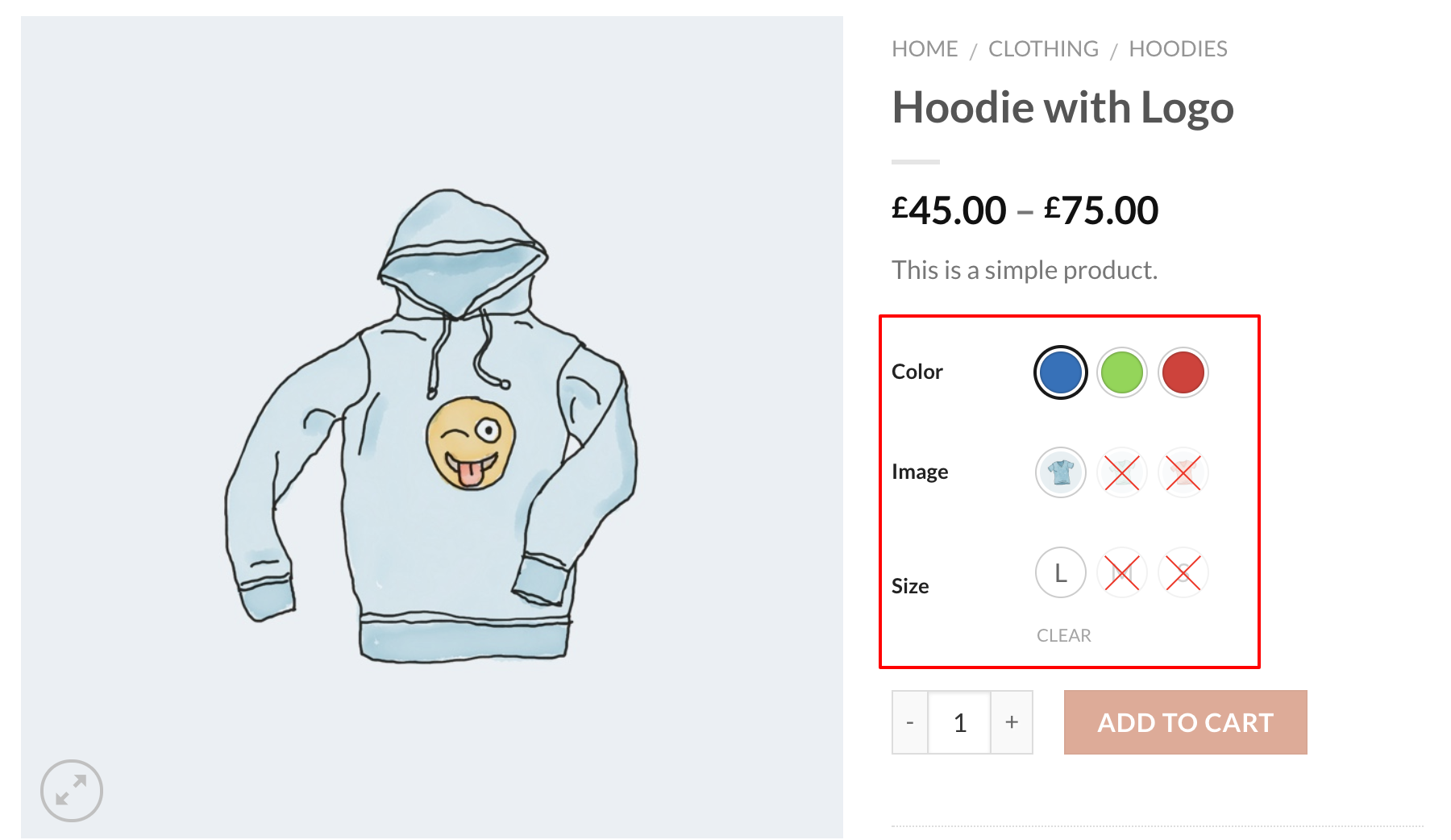
The free version works for products with up to about 30 variations and needs the WooCommerce catalog setting above turned on. The premium version supports unlimited variations and works without that setting. We wrote a full guide: How to Hide or Blur Out-of-Stock Variations.
Problem 3: The Product Page Does Not Match the Ad
Say your video ad shows a blue bag from four angles, with a short clip. If the product page shows one photo of that bag, customers may doubt what they see. Each variation should show its own photos, and ideally its own video.
Additional Variation Images Gallery for WooCommerce lets you add as many images as you need to each variation. It also supports YouTube, Vimeo, and self-hosted videos per variation.
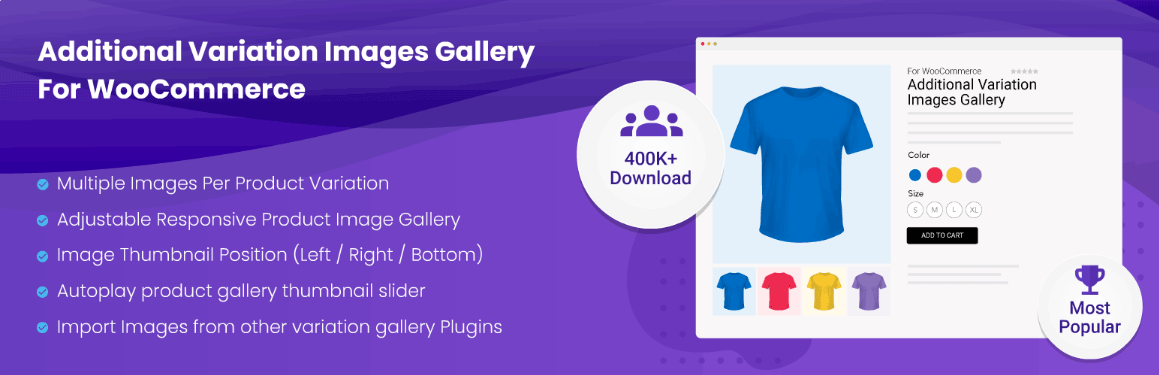
When a customer picks a different color, the gallery slides to the matching images and video. So the blue bag shows its own photos and clip, and your ad and your page tell the same story.
If each variation needs only one good photo, you may not need a plugin at all. Two notes if you do use it. First, some features are premium only, so check the Free vs Premium table on the product page. Second, videos add weight to your page. Keep them short and test your page speed on a phone.
How to Check That It Worked
Before Black Friday, do this on a phone, not just on your computer:
- Open your ad or post and tap the link.
- Confirm the right product and variation load.
- Tap a sold-out option and see what happens.
- Add to cart and go through checkout.
- Repeat on a slow mobile connection.
Ask a friend to do it too. They will notice things you no longer see.
Step 6: Retarget People Who Almost Bought
Most visitors do not buy on the first visit. Retargeting brings them back with a reminder.
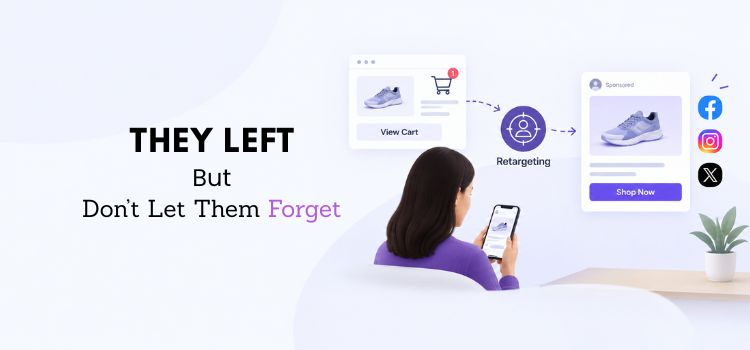
- Build audiences early. Start collecting visitors and add-to-cart events in October, so your audiences are ready by Black Friday. Use the tracking tag your ad platform provides.
- Split your audiences. Customers who added to cart are closer to buying than those who only viewed a product. Give them a more direct message, like “Still thinking about it? The sale ends Monday.”
- Exclude people who already bought. Nobody likes seeing an ad for something they just purchased.
- Cap the frequency. The same ad many times a day annoys customers.
Setting up audiences, ads, and tracking takes time. If your team is small, a digital marketing agency can handle the campaign setup and reporting for you.
Step 7: State Your Shipping and Returns Dates
Delivery worries stop many customers from buying. Answer that worry in your posts.
- Publish your last order dates for holiday delivery. Split them by region if they differ.
- Say clearly if delivery may be slower during the sale.
- Link to your returns policy in your bio and on your landing page.
- Pin one post with these details, and reuse the same wording when you answer questions in the comments.
After the Sale: Thank Customers and Bring Them Back
Black Friday does not end on Cyber Monday.

- Post a thank you on 1 December, and share what customers loved most.
- Email first-time buyers within a few days with a how-to or care tips.
- Ask for a review after their order arrives.
- Keep your notes from Step 7, so next year starts ahead.
- If you want one partner for ads, content, and search together, a full service digital marketing agency can help you build that plan.
Common Black Friday Social Media Mistakes
- Starting too late and rushing everything
- Posting on too many platforms with too little effort
- Sending traffic to a slow or confusing page
- Promoting a product with low stock
- Using fake urgency
- Ignoring comments and messages during the sale
A quick reply to a comment can be the push a customer needs.
Frequently Asked Questions
When should I start my Black Friday social media campaign?
Start now. Use the first two to three weeks to choose a platform and test. Use November to warm up your audience and collect emails. Then sell during Black Friday weekend and Cyber Monday.
Which social media platform is best for Black Friday?
The best platform is the one where most of your customers and revenue already come from. Check your analytics and ask your customers. If you are not sure, test two platforms with the same offer for 10 to 14 days.
How much should I spend on Black Friday ads?
There is no single right number. Start with a small test budget. Once you know your cost per order, add budget to the platform and post that perform best. Never spend more than your margins allow.
Do I need a plugin to run a Black Friday campaign on WooCommerce?
No. WooCommerce has what you need to run a sale. Plugins help when you have many variable products and want to save time or improve the customer experience. Variation Swatches and Additional Variation Images Gallery are two examples.
Can I send customers to a specific product variation from a social post?
Yes. WooCommerce can preselect a variation from URL values, and you can test this by hand. Variation Swatches also has a premium Generate Variation URL option that creates the link for you.
How do I stop customers from choosing sold-out variations?
Use the WooCommerce setting that hides out-of-stock items from the catalog, or use Variation Swatches to blur or hide sold-out options. Both have limits, which are explained in Step 5.
Final Thoughts
A good Black Friday social media campaign is not about doing more. It is about doing a few things well.
Pick one platform. Build one clear offer. Collect emails. Make sure your product pages match your posts and show the right stock. Then track what works.
You have eight weeks. Start with one step this week.

