You built a variable product. You added the colors and the sizes. You clicked Update. Then you opened the product page — and there is nothing there. No dropdown. No swatches. Sometimes not even an Add to Cart button.
This is one of the most common WooCommerce problems there is. With over 4 million live WooCommerce stores running today, and more than 7 million active installs of the plugin, this question shows up in support forums every single day.
The good news: the cause is almost always one of about ten things. Most of them are settings, not bugs. You can fix the majority in under five minutes once you know where to look.
This guide walks through each cause, from the most common to the most technical. Start with the symptom table below, then jump to your section.
Start Here: Match Your Symptom
Different symptoms point to different causes. Find yours first so you don’t waste time.
| What you see | Most likely cause |
|---|---|
| No dropdown at all on the product page | Product type is not “Variable product”, or the attribute is not marked for variations |
| Dropdown shows, but it is empty | No variations were created, or all of them are disabled |
| Some variations show, some don’t | Missing price on the hidden ones, or your server dropped them on save |
| “Please select some product options” won’t go away | Variation is disabled, or an attribute term is missing |
| Half your variations vanished after saving | PHP max_input_vars limit |
| Dropdowns don’t filter each other | You have more than 30 variations |
| “Sorry, no products matched your selection” | Same 30-variation behaviour, or an incomplete variation set |
| Variations show, but the image never changes | Gallery or theme issue, not a variation issue |
| Nothing shows on the shop page | This is normal WooCommerce behaviour |
Setup Problems (Fix These First)
Around eight out of ten cases end here. Work through these four checks in order before you touch anything technical.
1. Your Variations Have No Price
This is the single most common cause, and it catches almost everyone once.
WooCommerce will not display a variation that has no regular price. It is not a bug – it is deliberate. The official WooCommerce variable products documentation is clear that the regular price field is required, and that variations without prices do not appear in your store.
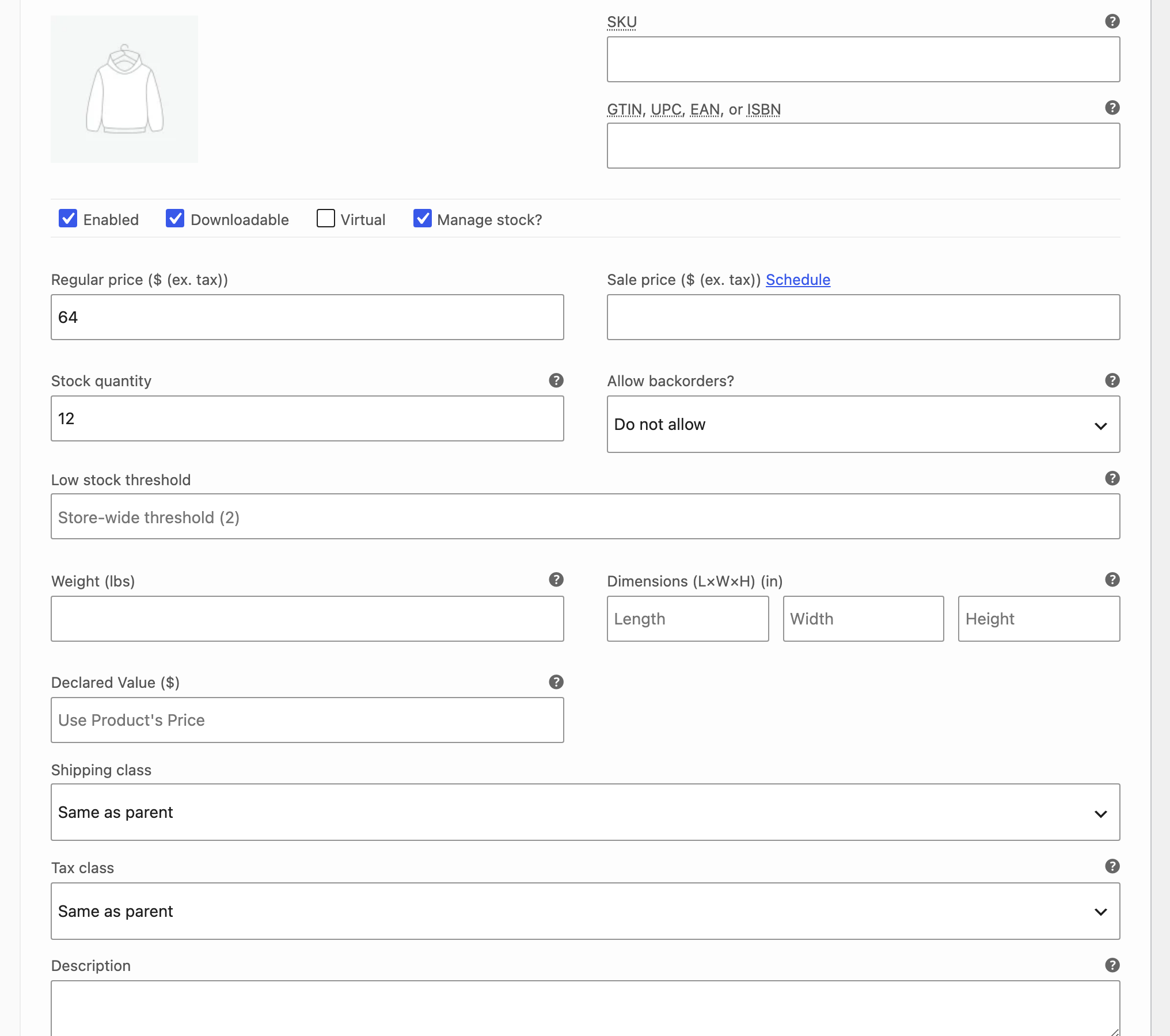
So if you generated 24 variations and only filled in prices for 6 of them, shoppers will only ever see those 6.
How to fix it:
- Open the product and click the Variations tab.
- Expand each variation and check the Regular price field.
- Fill in any that are empty.
- Faster option: use the Bulk actions dropdown at the top of the Variations tab and choose Set regular prices. This fills every variation at once, and you can adjust individual ones after.
If you have hundreds of products, checking by hand is not realistic. The snippet further down will scan your whole store for you.
2. The Attribute Isn’t Set Up for Variations
An attribute can exist on a product and still do nothing. There are two separate things that have to be right here, and people usually get one and miss the other.
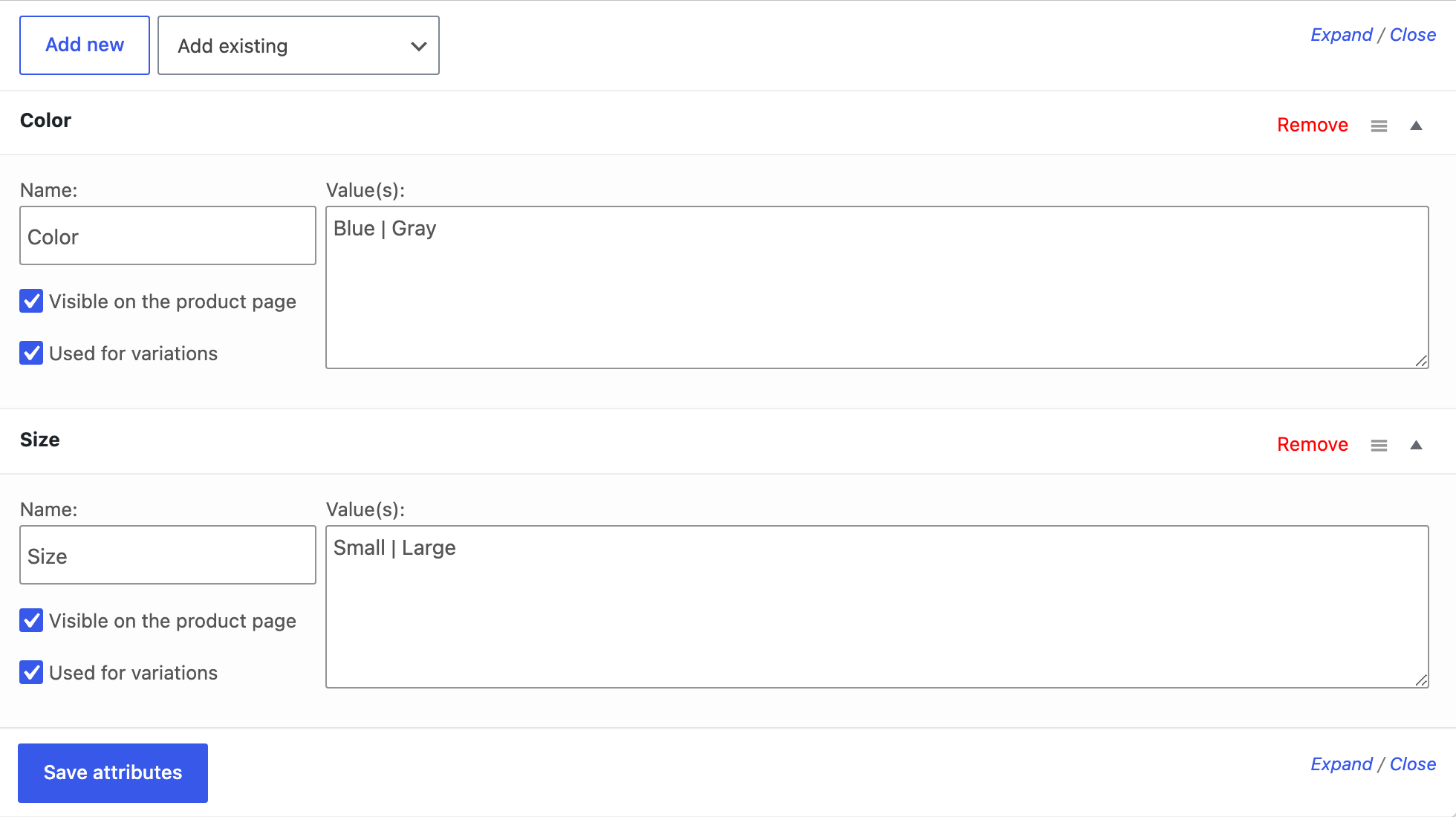
First, the attribute needs values.
If you are using a global attribute — one you created under Products → Attributes — selecting it on the product is only half the job. You also have to pick which values that product actually uses in the Select values box.
Add the Colour attribute but leave the values box empty, and WooCommerce has nothing to build variations from. The Variations tab will let you click Generate and then tell you there is nothing to generate.
Custom attributes work differently. You type the values directly into the field, separated by the | character, so this trap doesn’t apply.
Second, the attribute needs the tick.
WooCommerce only turns an attribute into a selectable option when Used for variations is checked. Without it, the attribute just shows up in the Additional Information tab as plain text. No dropdown. No swatches.
How to fix it:
- Open the product, go to Product data → Attributes.
- Expand your attribute.
- Confirm the Select values box has terms in it. Use Select all if the product uses every value.
- Tick Used for variations.
- Click Save attributes, then go to the Variations tab and generate your variations again.
This one bites hardest when you copy a product. Duplicated products sometimes lose the tick, and imported products often come in with the attribute but no values.
Attribute setup has more corners than this. For the full walkthrough, see our guide to WooCommerce product attributes.
(Internal link once published: WooCommerce product attributes guide.)
3. The Variation Is Disabled
Every variation has an Enabled checkbox. Untick it and the variation disappears from the front end while staying in your admin list.
This is a useful feature — you can park a seasonal variation without deleting it. But it is easy to untick by accident, especially when you are scrolling through a long variation list.
How to fix it:
Expand each variation and confirm Enabled is ticked. You can also use Bulk actions → Toggle “Enabled”, though be careful – that flips the state of every variation rather than turning them all on.
4. The Product Type Is Wrong
It sounds obvious; happens constantly.
If the Product data dropdown says “Simple product”, no amount of attribute work will produce a variation dropdown. Import tools and migration plugins are the usual culprits — they often bring products in as Simple by default.
How to fix it:
open the product, change the Product data dropdown to Variable product, save, then rebuild the attributes and variations.
Stock Settings That Hide Variations
If your variations show up sometimes but not always, stock is probably involved.
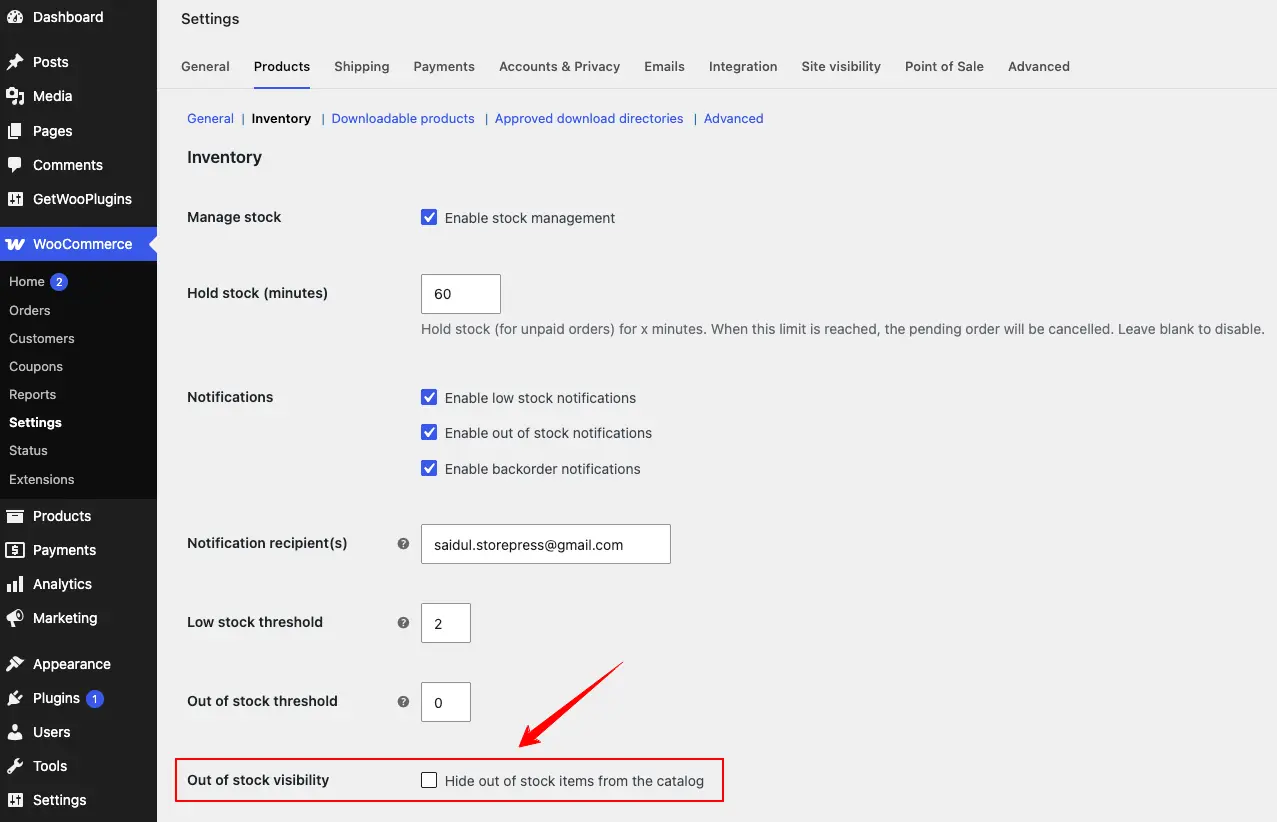
WooCommerce has a setting at WooCommerce → Settings → Products → Inventory called “Hide out of stock items from the catalog.” When it is on, out-of-stock variations disappear from the dropdown entirely.
But it only works when all of these are true at once:
- The setting is enabled
- Stock is managed at the variation level, not the parent product level
- The variation’s stock is 0, or its status is set to Out of stock
- Backorders are disabled for that variation
If any variation allows backorders, it stays visible even at zero stock. And if you manage stock at the parent product level, every variation shows regardless of status.
That is why this setting confuses people. It looks broken when it is actually working exactly as designed.
One more thing worth knowing: this setting is site-wide. It also hides fully sold-out products from your shop pages. That is often not what store owners want. We go deeper into the trade-offs, including how to blur or cross out variations instead of hiding them, in our guide on hiding or blurring out-of-stock variations.
Server and Technical Causes
If the setup checks all passed, the problem is one level down.
5. Your Server Silently Dropped Half Your Variations
This is the most frustrating one, because nothing warns you. You add 60 variations, click Save, and 30 of them are simply gone.
The cause is a PHP setting called max_input_vars. It limits how many form fields a single submission can contain. WooCommerce’s own documentation on large amounts of data not saving confirms the default is typically 1000 — and that anything beyond it gets truncated without an error message.
A variable product form is field-heavy. Each variation carries its own price, sale price, SKU, stock, weight, dimensions, shipping class, and description. Multiply that by 40 or 50 variations and you cross 1000 quickly.
How to check it:
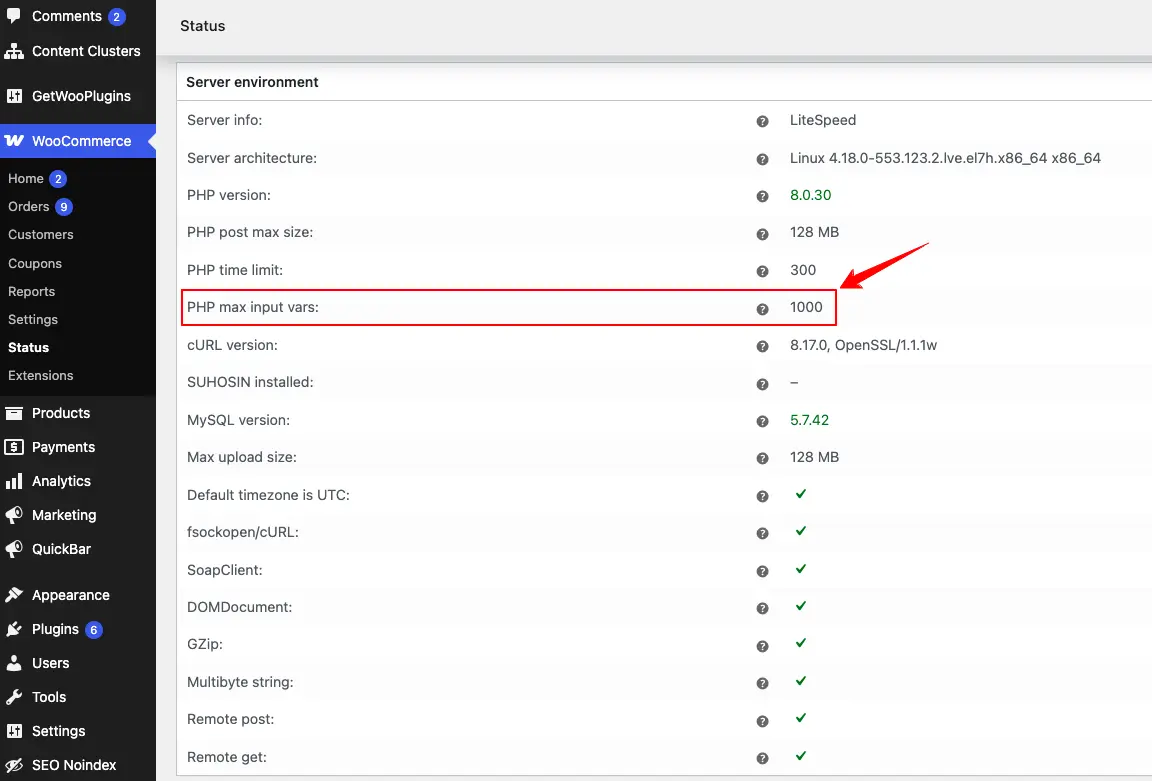
Go to WooCommerce → Status and look at the Server environment section. Find PHP Max Input Vars.
Do not expect a standard number here. This is a PHP setting, not a WordPress or WooCommerce one, so the value comes from your host. Check three different stores and you can easily see 1000 on one, 4000 on another, and 10000 on a third.
Here is how to read what you find:
- 1000 — the PHP default. Nobody has touched it. Common on budget shared hosting, and too low for most variation-heavy stores.
- 4000 or higher — your host raised it deliberately. Managed WordPress hosts usually do this because they expect WooCommerce sites.
- Anything else — a previous developer or your host’s PHP settings panel set it.
There is no single correct number. The real question is whether it is high enough for your biggest product. A store with 100+ variations on one product can still hit the ceiling at 4000.
The simplest test: save your largest variable product, reload the page, and count the variations. If the count dropped, the limit is too low no matter what the number says.
How to fix it:
Ask your host to raise it. Most managed WordPress hosts will do this in a support ticket within minutes, and many have a PHP settings panel where you can change it yourself. A value of 5000 is comfortable for most stores.
If you can edit php.ini, add:
max_input_vars = 5000Or in .htaccess on some shared hosts:
php_value max_input_vars 5000Where to put this: php.ini usually sits at your server root, next to public_html. Do not edit WordPress files for this. How to check it worked: reload WooCommerce → Status and confirm the new number appears, then re-save your product and count your variations.
6. You Have More Than 30 Variations
WooCommerce changes behaviour at 30 variations, and this surprises a lot of store owners.
Under 30, the dropdowns are dynamic. Pick a size, and the colour dropdown updates to show only the colours available in that size.
Over 30, the dropdowns go static. Every option stays visible whether it exists or not. When a shopper picks a combination that doesn’t exist, they get “Sorry, no products matched your selection. Please choose a different combination.”
This is a performance decision, not a bug. Calculating valid combinations after every click gets expensive on large products.
If your store depends on that filtering, you can raise the limit with a filter:
add_filter( 'woocommerce_ajax_variation_threshold', 'gwp_raise_variation_threshold', 10, 2 );

function gwp_raise_variation_threshold( $threshold, $product ) {
    return 100;
}
Where to put this:
WPCode, or your child theme’s functions.php.
How to check it worked: open a product with 40+ variations and confirm the second dropdown now filters after you pick from the first.
A warning: raise this too far and product pages get slow, because WooCommerce has to load every variation up front. Test on staging with your largest product. WooCommerce documents this filter and its trade-offs in its guide to changing the dynamic dropdown limit.
7. Caching or JavaScript Minification Broke the Form
Variation dropdowns are not plain HTML. They depend on a WooCommerce JavaScript file called wc-add-to-cart-variation.js. If that script fails to load, the form renders but never populates.
Optimisation plugins are the usual cause. Aggressive minification, script deferring, or “combine JavaScript” settings can break the load order.
Here is a quick way to confirm it. Open a variable product page on the front end, open your browser console (F12), and paste this:
if ( typeof jQuery === 'undefined' ) {
    console.log( 'jQuery is not loaded. Your optimisation plugin is the likely cause.' );
} else if ( typeof jQuery.fn.wc_variation_form === 'undefined' ) {
    console.log( 'WooCommerce variation script is missing. Check JS minification or deferring.' );
} else {
    console.log( 'Variation script loaded. Forms found: ' + jQuery( '.variations_form' ).length );
}
How to read it:
If you get either of the first two messages, go into your caching or optimisation plugin and exclude wc-add-to-cart-variation.js and jQuery from minification and deferring. Then clear every cache layer — plugin cache, host cache, and CDN. Then test in a private window, because your browser is probably still holding the old files.
8. Your Theme Uses Outdated WooCommerce Templates
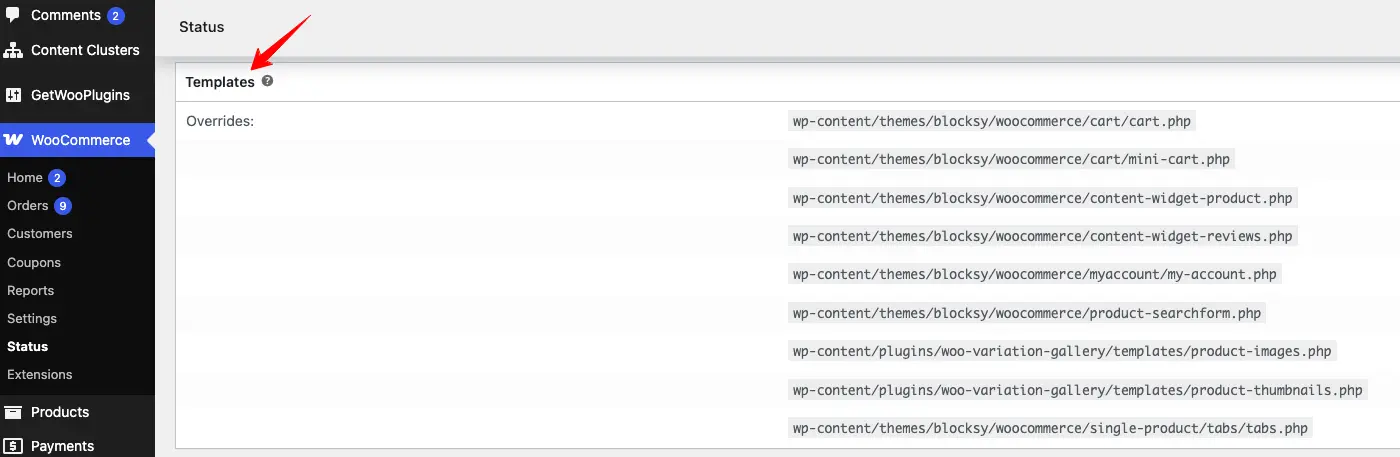
Themes can override WooCommerce templates. When WooCommerce updates and the theme doesn’t, those old copies can break the variation form.
How to check: go to WooCommerce → Status → System Status and scroll to the bottom. The Templates section lists any files your theme has overridden, with a warning on the outdated ones.
How to fix: update your theme first. That solves it in most cases, since theme authors usually ship template updates quickly. If your theme is custom, you will need to merge your changes into the new template files. WooCommerce has a developer guide to fixing outdated templates that walks through the process.
9. A Plugin or Theme Conflict
If you’ve reached this point, run a conflict test. It is tedious but it works.
- Take a backup, and do this on staging if you can.
- Switch to a default theme like Twenty Twenty-Four. Check the product page. If variations appear, your theme is the cause.
- If not, deactivate every plugin except WooCommerce. Check again.
- Reactivate plugins one at a time, checking the product page after each.
- The plugin that breaks it is your answer.
The usual suspects are page builders, other swatch or variation plugins, currency switchers, and product filter plugins.
A Snippet to Find Broken Variations Across Your Whole Store
Checking prices product by product doesn’t scale. This snippet scans every published variation and reports the ones with no regular price — the exact reason they aren’t showing.
add_action( 'admin_notices', 'gwp_find_variations_without_price' );

function gwp_find_variations_without_price() {

    if ( ! current_user_can( 'manage_woocommerce' ) ) {
        return;
    }

    /* Only runs when you add ?gwp-check-variations=1 to a wp-admin URL. */
    if ( ! isset( $_GET['gwp-check-variations'] ) ) {
        return;
    }

    $variations = wc_get_products( array(
        'type'   => 'variation',
        'limit'  => -1,
        'status' => 'publish',
        'return' => 'objects',
    ) );

    $broken = array();

    foreach ( $variations as $variation ) {

        if ( '' !== $variation->get_regular_price() ) {
            continue;
        }

        $parent   = wc_get_product( $variation->get_parent_id() );
        $broken[] = sprintf(
            '#%d - %s',
            $variation->get_id(),
            $parent ? $parent->get_name() : 'Unknown product'
        );
    }

    if ( empty( $broken ) ) {
        echo '<div class="notice notice-success"><p>Every published variation has a regular price.</p></div>';
        return;
    }

    echo '<div class="notice notice-error"><p><strong>' . count( $broken ) . ' variation(s) have no regular price and will not show on the front end:</strong></p><ul>';

    foreach ( $broken as $line ) {
        echo '<li>' . esc_html( $line ) . '</li>';
    }

    echo '</ul></div>';
}
Where to put this: WPCode as a PHP snippet, or your child theme’s functions.php.
How to run it: visit any admin page with ?gwp-check-variations=1 on the end. For example: yoursite.com/wp-admin/edit.php?post_type=product&gwp-check-variations=1
How to check it worked: you will see either a green notice or a red list of variation IDs and product names at the top of the screen.
Important: this loads every variation in one go. On a store with tens of thousands of variations it can be slow or hit a memory limit. Run it on staging first, and remove the snippet once you have your list.
Variations Show, But the Image Never Changes
This is a different problem with the same feeling. The dropdown works. The price updates. The image just sits there.
Two things to check.
First, each variation needs its own image. Expand the variation and click the image placeholder. If that field is empty, WooCommerce has nothing to swap in.
Second, know what your WooCommerce version can do. Historically, core WooCommerce allowed one image per variation. Since WooCommerce 11.1, core supports multiple images per variation through a variation gallery field, and the product gallery swaps when a shopper selects a variation.
If images still don’t change after setting them, the cause is usually the theme. Custom product galleries that don’t follow the standard WooCommerce structure often break the swap. Test with a default theme to confirm.
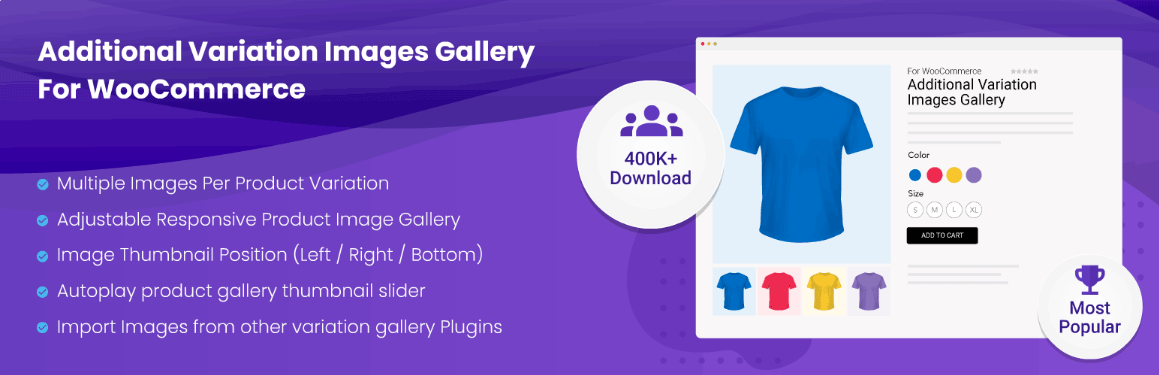
For stores that need more than image swapping — video per variation, thumbnail position control, zoom and lightbox behaviour, or gallery export and import — the Additional Variation Images Gallery plugin handles those. Its free version is on WordPress.org if you want to test the fit first.
Variations Don’t Show on the Shop Page — That’s Normal
Let’s clear this one up, because it sends a lot of people hunting for a bug that isn’t there.
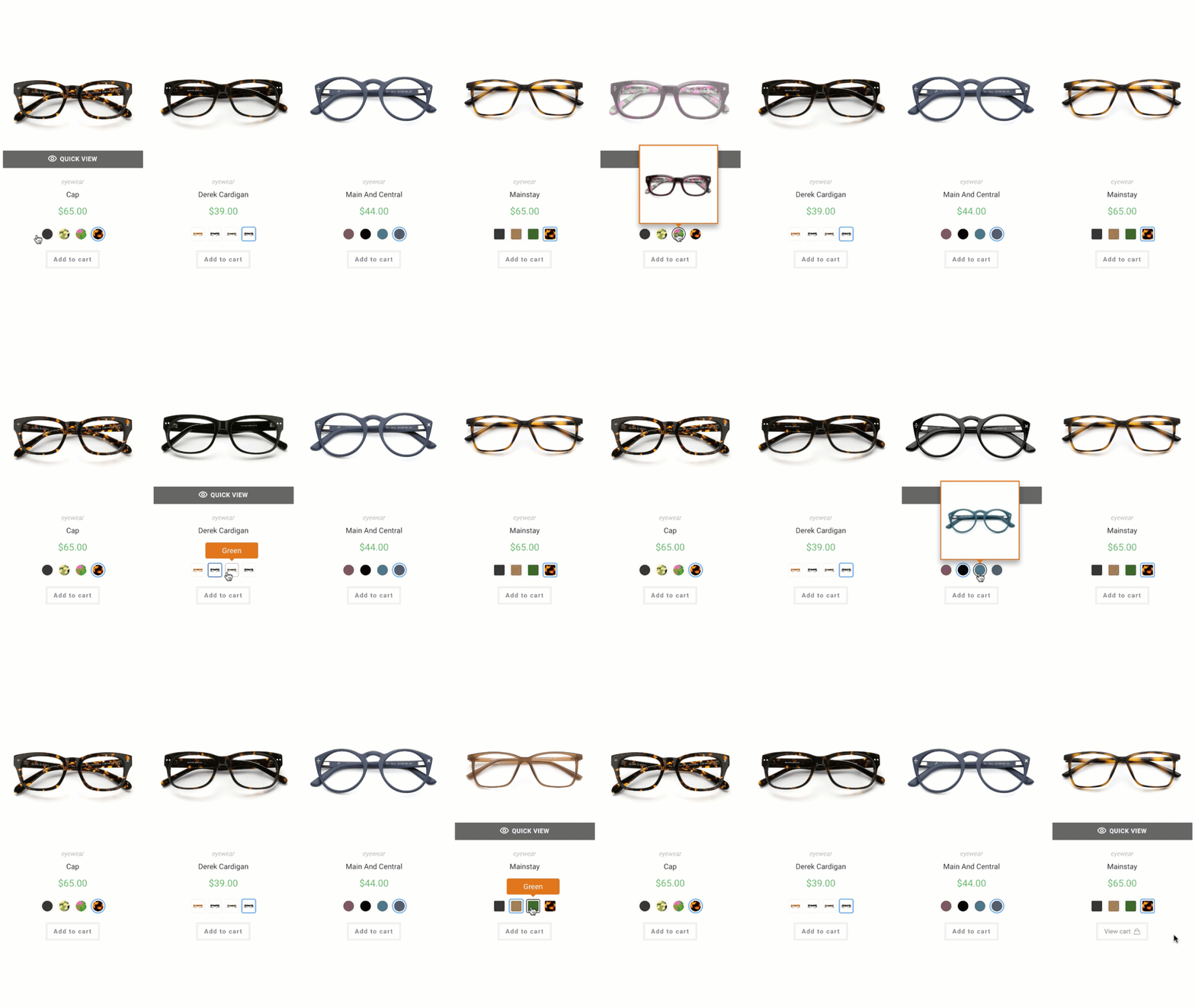
WooCommerce does not show variation options on shop, category, or archive pages. By design, those pages show a price range and a link. Shoppers click through to the product page to choose.
So if your variations are missing from the shop page, nothing is broken. There is nothing to fix in settings, because the setting doesn’t exist in core.
Displaying swatches on archive pages requires a plugin. If that is what you’re after, we have a full walkthrough in how to show variation swatches on the shop page.
When a Plugin Is the Better Fix
Everything above is free and manual. For a store with 20 products, manual is completely reasonable — you fix the price fields once and move on. Don’t buy a plugin to solve a problem you already solved.
The case changes when the display layer is the actual problem.
WooCommerce dropdowns are a browser element, and browsers give you almost no control over them. You cannot style the options. You cannot blur them, cross them out, or show colours inside them. That is a hard browser limit, not a WooCommerce one. So if your issue is “customers can’t tell which options are available,” a dropdown will never solve it, no matter how correctly it is configured.
That is what Variation Swatches for WooCommerce is for. It replaces the dropdown with real HTML elements — colour, image, button, and label swatches — which means the options become styleable. Every available option is visible at once, and out-of-stock ones can be blurred or crossed out instead of silently vanishing. It runs on 300,000+ stores and holds a 4.8 out of 5 rating across 919 reviews.
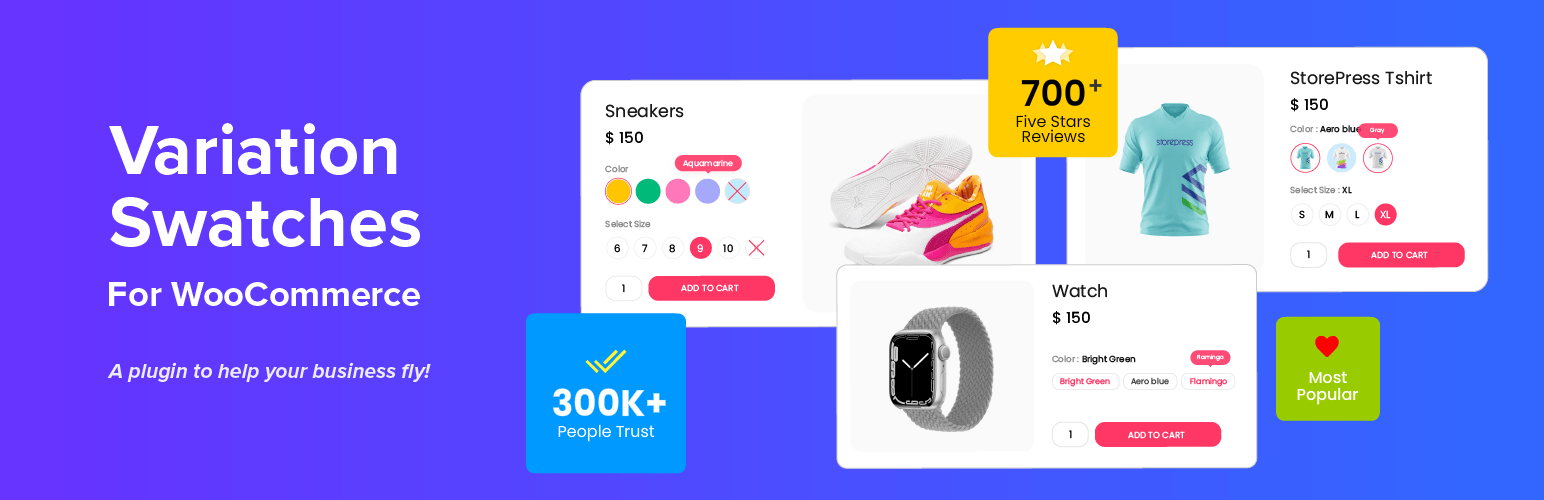
The free version covers colour, image, and button swatches on the product page, plus out-of-stock blur, cross, and hide for products with up to 30 variations. That is enough for most small catalogues, and you can download it from WordPress.org to test.
Premium adds the things that free deliberately doesn’t: swatches on shop and archive pages, radio button swatches, out-of-stock handling for unlimited variations without needing the site-wide catalog setting, and per-product swatch customisation. Being direct about that line matters — if you only need product page swatches, the free version is genuinely all you need.
If your problem was a missing price field, none of this applies. Fix the price and you’re done.
Frequently Asked Questions
Why is my WooCommerce variation dropdown empty?
Usually because no variations exist yet, or all of them are disabled. Open the Variations tab and confirm variations were actually generated. If they exist, check the Enabled checkbox on each one, and confirm each has a regular price.
Why does WooCommerce say “Please select some product options” when I already selected them?
The combination you picked doesn’t map to a real variation. This happens when a variation was deleted, disabled, or never had a price set. It also happens when your attributes changed after the variations were created — WooCommerce needs the variations rebuilt after an attribute change.
Why did half my variations disappear after saving?
Your server’s max_input_vars limit truncated the form. Check the value at WooCommerce → Status under Server environment. The number varies by host — 1000 is the PHP default and almost always too low, but even 4000 can fall short on a product with 100+ variations. Ask your host to raise it, then re-save the product and count the variations again.
Why do my dropdowns stop filtering each other?
You crossed 30 variations. Above that number WooCommerce switches to static dropdowns for performance. You can raise the limit with the woocommerce_ajax_variation_threshold filter, but test the page speed impact first.
Why don’t my variations show on the shop page?
They aren’t supposed to. WooCommerce shows a price range on archive pages and expects shoppers to click through. Showing swatches there requires a plugin.
Do I need a plugin to fix variations that aren’t showing?
No. Almost every cause in this guide is a setting, a server value, or a conflict. A plugin fixes how variations look, not whether they exist.
My variation images don’t change. Is that the same problem?
No, that is a gallery issue rather than a variation issue. Check that each variation has an image assigned, then test with a default theme to rule out a custom product gallery.
How do I know if a plugin is causing this?
Run a conflict test on staging. Switch to a default theme, then deactivate all plugins except WooCommerce, then reactivate one at a time until the problem returns.
Quick Recap
Work through it in this order and you will find the cause:
- Every variation has a regular price
- Attribute has values selected and is ticked as Used for variations
- Each variation is Enabled
- Product type is Variable product
- Stock and backorder settings aren’t hiding things
max_input_varsis high enough for your biggest product- You know what changes above 30 variations
- Caching and minification aren’t breaking the script
- Theme templates are current
- No plugin or theme conflict
Nine times out of ten you’ll stop at step one.

)