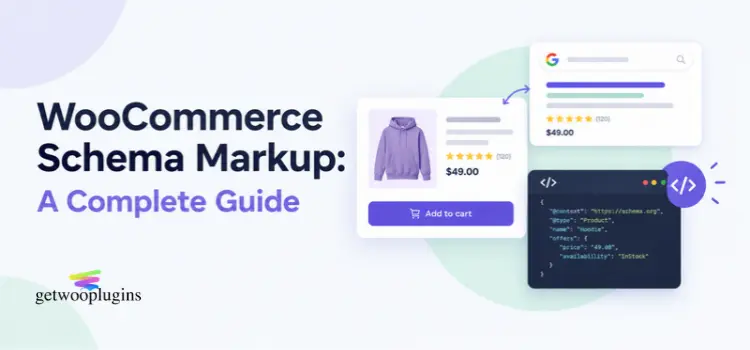
Schema markup is a small block of code that tells Google what a page says. On a product page, it names the product, the price, the stock status and the reviews. Google can use it to show extra details in search.
WooCommerce adds some schema on its own. But it leaves gaps, and the biggest gap is variable products. This guide shows what WooCommerce adds, what it misses, and how to fix it with code you can test.
Last checked: October 2026, against the WooCommerce 11.1.2 source code and Google Search Central documentation.
Quick answers
- WooCommerce prints Product schema as JSON-LD on single product pages.
- It does not add brand, item condition, shipping details or a return policy.
- A variable product with different variation prices gets a price range (AggregateOffer). Google’s merchant listings need a single Offer.
- Schema makes a page eligible for rich results. It does not guarantee them.
- Google says you do not need special markup for AI Overviews.
What is WooCommerce schema markup?
WooCommerce schema markup is structured data on your store pages. It uses the schema.org vocabulary and is written in JSON-LD. That is a block of text in the page code. Customers never see it. Search engines do.
Think of it as a label on a box. The page shows the product to people. The schema tells machines what is in the box.
Google describes two kinds of Product markup. Product snippets are for pages where people cannot buy the product, like a review page. Merchant listings are for pages where customers can buy. A store page should aim for merchant listings. A page that meets the merchant listing rules can also be eligible for product snippets.
What schema does WooCommerce add by default?
On a single product page, WooCommerce prints a Product block and a BreadcrumbList. The table below shows what the Product block holds. It comes from the WooCommerce 11.1.2 source code.
| Field | Added by default? |
|---|---|
| Name, URL and description | Yes. It uses the short description first. |
| Image | Yes, but only one: the main product image. |
| SKU | Yes. It falls back to the product ID if the SKU is empty. |
| GTIN | Yes, if the GTIN field holds a valid number. |
| Price, currency, availability and seller | Yes. The seller is your store name. |
| Price valid until | Yes. It is set to the end of next year, unless a sale end date exists. |
| Rating and up to five recent reviews | Yes, if reviews are on and the product has ratings. |
| Brand, MPN and item condition | No |
| Shipping details and return policy | No |
| More than one image | No |
Google’s merchant listing guide requires three things: name, image and offers. WooCommerce covers them, with one catch. If a product has no image, WooCommerce leaves the image out. That breaks a required field.
Google also lists brand, item condition, shipping details and return policy as recommended. WooCommerce skips all four. Step 3 fills most of those gaps.
An SEO plugin or your theme may print its own Product block too. So check before you change anything.
Why variable products need extra work?
Here is the problem. When variation prices differ, WooCommerce writes the price as a range. The schema type is AggregateOffer, with a low price, a high price and a count of offers. When all variations cost the same, it writes a plain Offer instead.
Google treats these two differently. Product snippets accept an Offer or an AggregateOffer. Merchant listings require an Offer, because the merchant has to be the seller. So a price range may leave your variable products out of merchant listing features.
That does not mean Google penalizes the page. It means the page may not qualify for those features. Valid markup never guarantees a rich result.
Google has a better route for variations. It is called ProductGroup. One parent ProductGroup holds each variation as its own Product with its own Offer. Google’s variant guide asks for these things:
- A unique ID for each variation, such as a SKU.
- A unique ID for the group, called productGroupID.
- A distinct URL for each variation that opens it with the right options selected.
- Product data that follows the merchant listing or product snippet rules.
One more limit. The optional varies by field only accepts color, size, suggested age, suggested gender, material and pattern. An attribute like storage size is not on that list.
Step 1: Check what your store prints now
- Open a product page. Right click and choose View page source.
- Search the page for application/ld+json.
- Count the Product blocks. More than one source can send mixed signals.
- Paste the product URL into Google’s Rich Results Test.
- Open Search Console. Look at the Product snippets and Merchant listings reports.
- Write down every error and warning.
Do this on one simple product and one variable product. They behave differently.
Step 2: Choose code or a plugin
| Method | Best for | Limits |
|---|---|---|
| Code snippets (WPCode/HFCM) | Stores that want a few extra fields, or have a developer | You maintain it. Test after WooCommerce updates. |
| SEO plugin (Yoast, Rank Math and others) | Owners who prefer settings screens and many schema types | Can print a second Product block. Behavior differs by plugin and version. |
When is the manual route reasonable? Often. If you only need brand, item condition and a return policy, about 20 lines of code is simpler than a new plugin. You also keep full control of the output. Code fits best when a developer can test it and you are happy to re-check after major updates.
A plugin is the better pick if you do not want to touch PHP. It also suits you if you need many schema types or want rules by category. Whichever you pick, do not run two systems that both print Product schema.
The rest of this guide uses code, because it shows exactly what is happening.
Step 3: Add brand, item condition and return policy
WooCommerce gives you two filters for this. One edits the whole Product block. The other edits the Offer.
Where to put this: Use the WPCode plugin. Go to Code Snippets, then Add Snippet, then Add Your Custom Code. Choose PHP Snippet, paste the code, switch the snippet to Active and save. Menu names can differ by version.
// Adds a brand to the Product block.
add_filter( 'woocommerce_structured_data_product', function ( $markup, $product ) {
  $markup['brand'] = array(
    '@type' => 'Brand',
    'name'  => 'Your Brand Name',
  );
  return $markup;
}, 10, 2 );

// Adds item condition and a return policy to the Offer.
add_filter( 'woocommerce_structured_data_product_offer', function ( $offer, $product ) {
  $offer['itemCondition']           = 'https://schema.org/NewCondition';
  $offer['hasMerchantReturnPolicy'] = array(
    '@type'                => 'MerchantReturnPolicy',
    'applicableCountry'    => 'US',
    'returnPolicyCategory' => 'https://schema.org/MerchantReturnFiniteReturnWindow',
    'merchantReturnDays'   => 30,
    'returnMethod'         => 'https://schema.org/ReturnByMail',
    'returnFees'           => 'https://schema.org/FreeReturn',
  );
  return $offer;
}, 10, 2 );
Change three things before you save. Use your real brand name. Use your real return country, days and fees. Google may check merchant listing data against your page, so the values must match your actual policy.
Google prefers a store-wide return and shipping policy set under Organization markup. It suggests product-level policies only to override the store policy, or when you have none. So use this code if you have no store-level policy yet. Shipping details follow the same pattern. See Google’s merchant listing guide for the fields.
How to check it worked: View the page source. Find brand and hasMerchantReturnPolicy inside the Product block. Then run the page through the Rich Results Test.
Code status: conceptual. Reviewed against WooCommerce 11.1.2 and not tested on a live store. Try it on a staging site first.
Step 4: Fix variable products with ProductGroup
This snippet swaps the price range for a ProductGroup. Each visible variation becomes a Product with its own Offer and its own link.
Where to put this: Add it as a second WPCode PHP snippet. Keep it apart from the first one, so you can turn it off alone.
add_filter( 'woocommerce_structured_data_product', 'gwp_variable_product_group', 20, 2 );

function gwp_variable_product_group( $markup, $product ) {
  if ( ! $product->is_type( 'variable' ) ) {
    return $markup;
  }

  $group_id = $product->get_sku() ? $product->get_sku() : (string) $product->get_id();
  $currency = get_woocommerce_currency();
  $variants = array();

  foreach ( $product->get_children() as $variation_id ) {
    $variation = wc_get_product( $variation_id );
    if ( ! $variation || ! $variation->variation_is_visible() || '' === $variation->get_price() ) {
      continue;
    }

    // Each variation needs its own ID.
    $sku = $variation->get_sku( 'edit' );
    $sku = $sku ? $sku : $group_id . '-' . $variation_id;

    // A link that opens the product with this variation selected.
    $attributes = array_filter( $variation->get_variation_attributes() );
    $url        = add_query_arg( $attributes, $product->get_permalink() );

    $image = wp_get_attachment_url( $variation->get_image_id() );
    if ( ! $image && isset( $markup['image'] ) ) {
      $image = $markup['image'];
    }

    $variant = array(
      '@type'  => 'Product',
      'sku'    => $sku,
      'name'   => $product->get_name() . ' - ' . wp_strip_all_tags( wc_get_formatted_variation( $variation, true, false ) ),
      'offers' => array(
        '@type'         => 'Offer',
        'url'           => $url,
        'priceCurrency' => $currency,
        'price'         => wc_format_decimal( wc_get_price_to_display( $variation ), wc_get_price_decimals() ),
        'availability'  => $variation->is_in_stock() ? 'https://schema.org/InStock' : 'https://schema.org/OutOfStock',
      ),
    );
    if ( $image ) {
      $variant['image'] = $image;
    }
    $variants[] = $variant;
  }

  if ( empty( $variants ) ) {
    return $markup;
  }

  $markup['@type']          = 'ProductGroup';
  $markup['productGroupID'] = $group_id;
  $markup['hasVariant']     = $variants;
  unset( $markup['offers'], $markup['gtin'], $markup['sku'] );

  return $markup;
}
In plain words, it loops through each visible variation. It skips any variation with no price. It builds a link with that variation’s options. Then it replaces the single price range with the full list.
Limits you should know:
- It only works if WooCommerce prints the Product block. If an SEO plugin replaces that block, set this up in the plugin.
- It does not add variesBy or color and size values. Google lists variesBy as recommended, not required. Add them if your attributes are color or size.
- A product with a very large number of variations will print a long block.
How to check it worked: View the source of a variable product. Find ProductGroup and hasVariant. Copy two of the variation links into a browser. Each page should open with the right options selected. WooCommerce can read options from the URL, for example ?attribute_pa_color=red, but themes differ, so test yours. Then run the Rich Results Test and watch the Merchant listings report.
If a link does not select the options, fix that first. Google needs each variation to open directly with the right image, price and availability.
Code status: conceptual. Reviewed against WooCommerce 11.1.2 and not tested on a live store.
Where swatches fit
Variation Swatches for WooCommerce changes how options look on the page. It turns dropdowns into color swatches, image options and buttons. Its feature list includes a direct variation link you can share, which helps when you test links like the ones above. Check the plugin page to see which plan includes it.
We did not find anything saying the plugin changes your schema output. So treat schema as its own job. And keep stock honest. If you blur or hide out-of-stock variations, make sure the availability in your schema matches what customers see.
Step 5: Get sale prices right
Sales matter most at peak times like Black Friday. WooCommerce reads your sale schedule. If a sale has an end date, the schema uses it as the end of the price window. Without one, it uses the end of next year. So always set an end date on a timed sale. In the product, open Product data, then General, and use the sale price schedule.
For a simple product, WooCommerce lists the sale price first and marks the regular price as ListPrice. Google’s guide says ListPrice is allowed for a transition period, and StrikethroughPrice is the value to use. If the Rich Results Test warns about this, you can change the value with the offer filter from Step 3.
One thing needs a test. In the version we reviewed, the variable product sale branch marks the active sale price with a priceType of SalePrice. Google’s guide says the active price should carry no priceType. We could not confirm how Google treats this. Test a variable product on sale before your next campaign.
Also, WooCommerce does not print a sale start time. Google lets you add validFrom and an end time to the Offer. Add them with the same offer filter if you need exact times.
Last, the price in your schema must match the price on the page. Google may check.
Step 6: Keep reviews honest
WooCommerce adds a rating summary and up to five recent reviews when reviews are on. Only real customer reviews should feed it. Keep the rating on a product page to reviews of that product. Google also says a reviewer name must be a valid name for a Person or Team. A line like 50% off on Black Friday is not a valid name.
Step 7: Test, request a recrawl and monitor
After you save, wait. Google says it may take several days to find and crawl a page. Then do this:
- Open the URL Inspection tool and test the product page.
- Ask Google to recrawl the URL.
- Keep your sitemap up to date.
- Check the Merchant listings and Product snippets reports each week.
Put schema in the page HTML, not in JavaScript. Google warns that markup added by JavaScript can make shopping crawls less frequent and less reliable. That matters for price and stock, which change often. This is why a PHP filter beats a tag manager here.
Does schema help with AI Overviews and AI search?
Short answer: not directly. Google’s guide to generative AI features says structured data is not required, and no special schema.org markup is needed. It still says schema is worth keeping, because it helps with rich result eligibility.
What does help, according to Google:
- A page that is indexed and can show with a snippet.
- Content with a unique point of view, not a copy of what others say.
- Good images and video.
- For products, Merchant Center feeds and business details, which can make products visible in AI responses.
Google also says you can skip llms.txt files, content chunking and chasing mentions. Other AI tools may read schema too, but we found no public rules, so treat that as unproven.
To see how you do, use the Generative AI performance report in Search Console.
So how do you earn a spot? Answer the question near the top. Share what you tested. Keep your facts current. That is what this page tries to do, and it is what Google says it wants.
Common WooCommerce schema mistakes
| Mistake | Why it hurts | Fix |
|---|---|---|
| Two Product blocks | Can send mixed signals | Keep one source of Product schema |
| Price of zero | Merchant listings need a price above zero | Fix the product price |
| Old priceValidUntil date | A listing may not show if the date is in the past | Let WooCommerce set it, or update it |
| Product schema on category pages | Google says to mark up single product pages, not lists of products | Remove it from archives |
| Schema added with JavaScript | Less frequent, less reliable crawls | Print it from PHP |
| Many currencies on one URL | Google wants one URL per currency | Use separate URLs |
| Schema that differs from the page | Google may check the data | Match the page |
FAQ
Does WooCommerce add schema markup by default?
Yes. It prints Product schema in JSON-LD on single product pages. It also prints a BreadcrumbList. It skips brand, item condition, shipping details and return policy.
How do I add schema to WooCommerce without a plugin?
Use the filters woocommerce_structured_data_product and woocommerce_structured_data_product_offer. Add them as a PHP snippet in WPCode. Then test the page.
How do I check my WooCommerce schema?
View the page source and search for application/ld+json. Then use the Rich Results Test and the Search Console reports.
Does schema markup improve rankings?
We did not find Google calling schema a ranking boost. It helps a page become eligible for rich results.
Do variable products need ProductGroup?
It is not required. But Google says variant markup makes products eligible to show variant information in merchant listing experiences. It also tells Google which products are variations of one parent.
Is FAQ schema still worth adding?
Not for rich results. Google’s notice says FAQ rich results stopped appearing on May 7, 2026. The markup is still valid. Keep a visible FAQ for your readers.
Should I use JSON-LD, microdata or RDFa?
Google shows all three in its examples. WooCommerce uses JSON-LD. Stick with one format to avoid duplicates.
Will schema get me into AI Overviews?
There is no guarantee. See the AI section above for what Google says helps.
Your next steps
- Check one simple and one variable product page.
- Add brand, item condition and return policy.
- Fix variable products, then test a variation link.
- Set an end date on every sale.
- Watch Search Console for a few weeks.
Need expert help with ecommerce SEO at scale? Explore ecommerce SEO services for your store.

